
Unified entity mapping
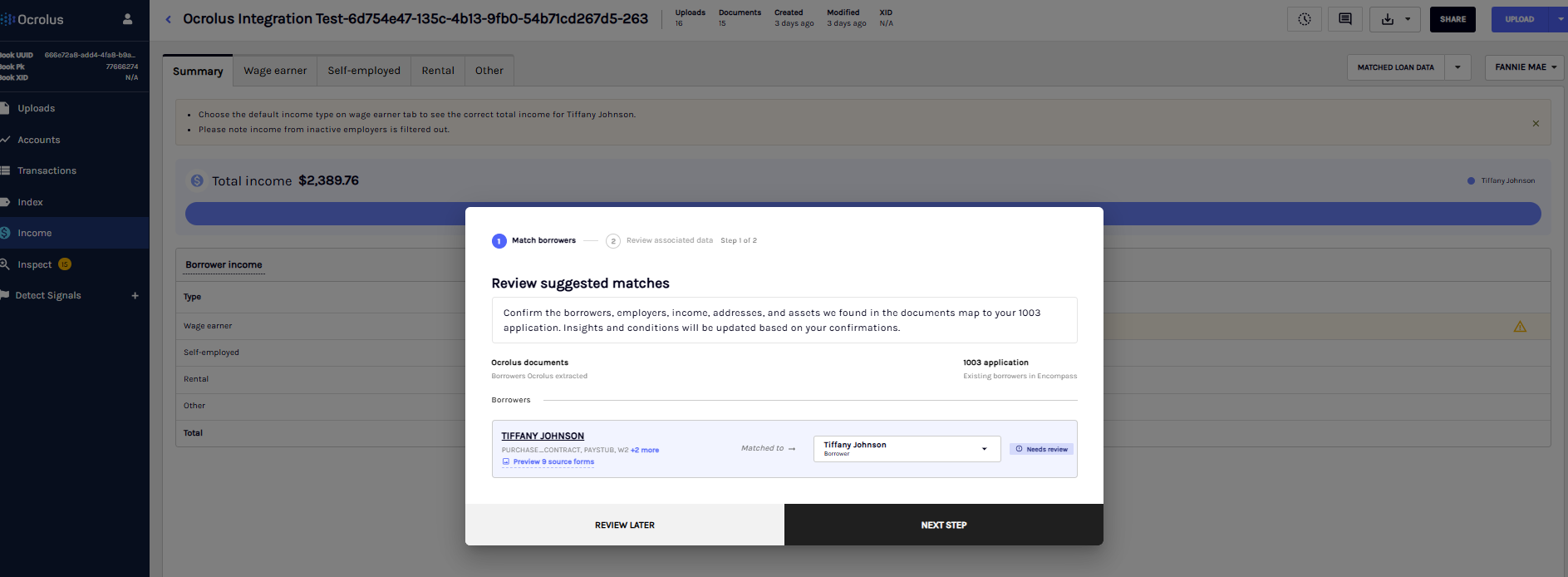
Before reviewing income calculations, Ocrolus prompts you to confirm how entities identified in borrower documents such as borrowers, employers, addresses, other income sources, and assets map to the corresponding entries in the loan application. This mapping is completed once per loan in the Review suggested matches modal and applies across both Inspect and Analyze.
AvailabilityThis feature is available to all mortgage clients, including both Encompass-integrated and non-Encompass users.
Once confirmed, mapped entities appear immediately in the income tabs and carry through to the Import Income screen, so you do not need to re-specify them at import time.
Step 1: Match borrowers
The first step of the modal presents Ocrolus-identified borrowers alongside the borrowers in the loan application. Ocrolus automatically suggests matches where possible. Review each suggestion and confirm or correct the mapping.
Step 2 is not accessible until all borrowers in Step 1 are confirmed. If borrowers have already been confirmed for this loan, the modal opens directly on Step 2.
Step 2: Confirmed associated data
Step 2 presents all remaining entity types in a single scrollable pane. Each section shows the Ocrolus-extracted entity on the left and a dropdown to select the matching loan application entry on the right.
Unmatched items appear at the top of each section, highlighted in yellow. Confirmed mappings move to a green confirmed state and collapse below. Each section header shows the number of unmatched items remaining.
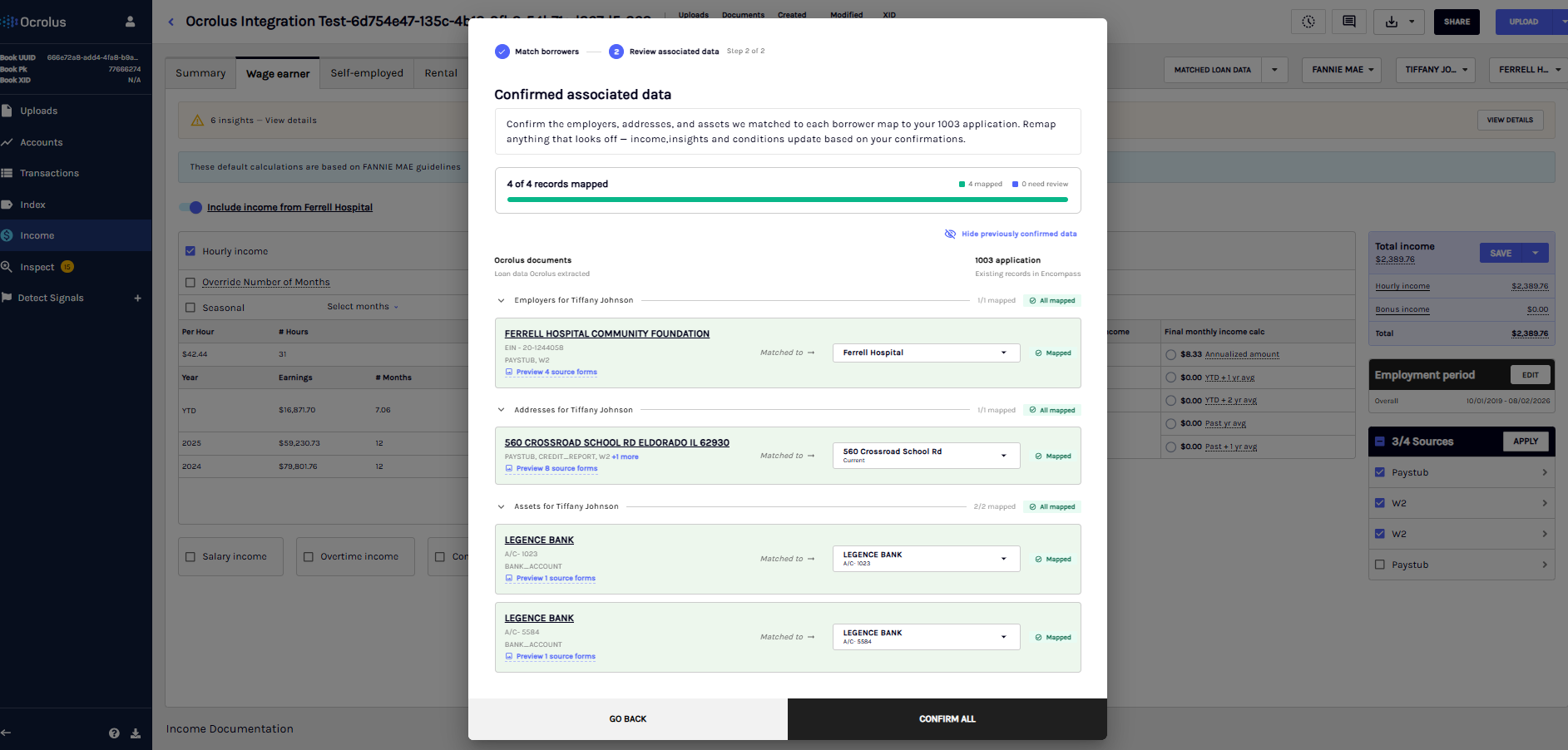
The sections that appear depend on what the uploaded documents contain:
| Section | What it maps | Visibility |
|---|---|---|
| Employers | Ocrolus-identified employer → loan application employer | Appears when documents contain employer data; grouped by borrower |
| Addresses | Ocrolus-identified address → loan application address | Always visible; supports manual address addition even when no addresses were extracted |
| Other income | Alimony, foster care, and other income types → loan application income type | Subsection within the Employers section |
| Assets | Bank account → borrower | Hidden when no assets exist on the loan |
To complete Step 2:
- For each entity, select the matching loan application entry from the dropdown. Select Do not use if the entity should not be included in income calculations.
- Review all sections until no unmatched items remain.
- Select Confirm all to save the mappings.
Confirmed mappings are reflected immediately in the income tab dropdowns without a page reload.
NoteSections show a row only when the uploaded documents contain that entity type. For example, a pay stub produces borrower and employer rows but not address or asset rows. To map addresses or assets, process a bank statement or other document that contains those entities.
Encompass and non-Encompass clients
The right-column data source in Step 2 differs by integration type:
| Encompass clients | Non-Encompass clients | |
|---|---|---|
| Right column source | Borrowers, employers, and addresses from the Encompass 1003 | Ocrolus-identified entities (Ocrolus-to-Ocrolus mapping) |
| Import write- back | Writes confirmed income values to Encompass VOE fields | Available only when an XML file is uploaded |
Known issue: duplicate address rowsIn some cases, the same Ocrolus-identified address may appear as two rows in the Addresses section, both mapping to the same loan application address. This is a known display issue. If you encounter it, map both rows to the correct address and confirm. The income calculations are not affected.
Import income values
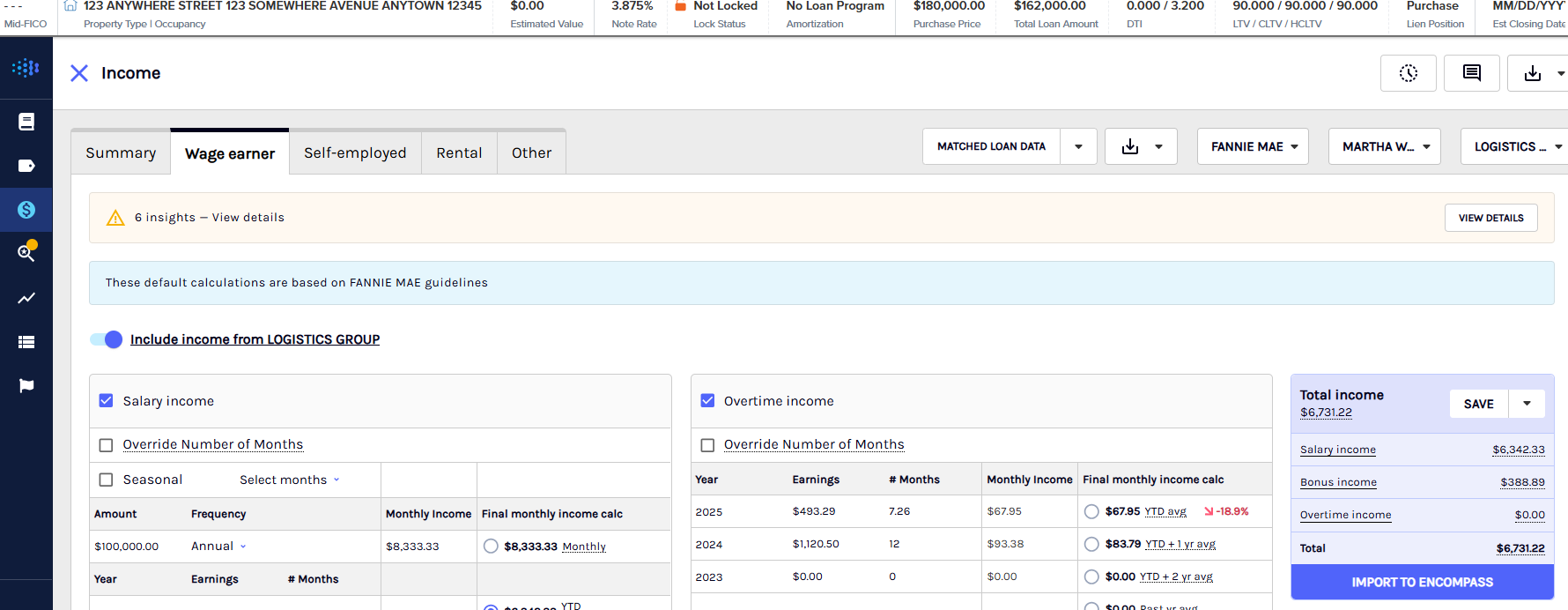
After confirming your entity mappings in the Review Suggested Matches modal, you can import income values into Encompass directly from the income worksheet.
NoteThis applies to Encompass clients only. Non-Encompass clients do not write back to a loan origination system as the confirmed mappings are used for Ocrolus income calculations only.
To import income values:
-
Select IMPORT TO ENCOMPASS.
-
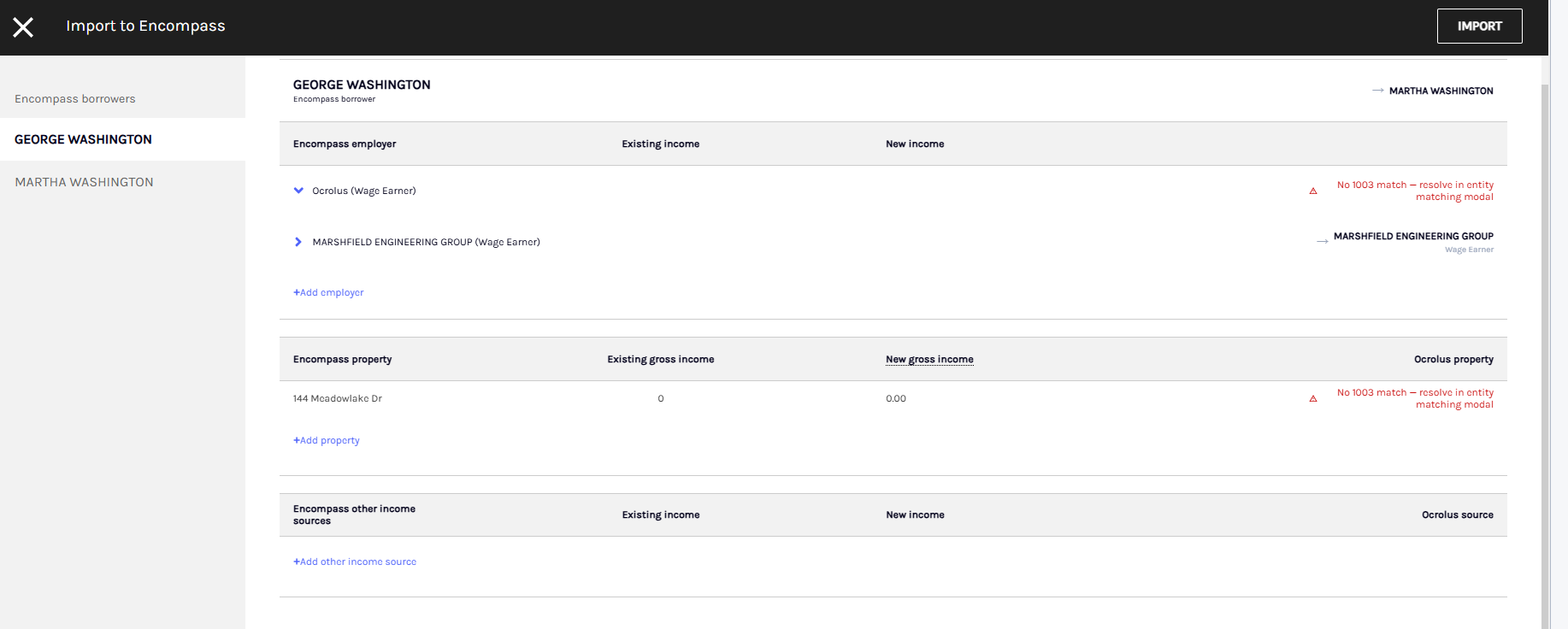
The Import Income screen appears. Review the four-column summary: Ocrolus entity, 1003 entity, existing income (current Encompass values), and new income (Ocrolus-calculated values). All entity labels are read-only, sourced from your confirmed RSM mappings.
-
If any row shows an unresolved mapping, a prompt directs you to return to the Review Suggested Matches modal to complete that mapping before importing.
-
Select Confirm Import to write the income values to the Encompass VOE fields. Select Cancel or Go back to dismiss without importing.
-
Verify that the values have updated correctly in the Encompass VOE fields.
Updated about 2 months ago