
Setting up Freddie Mac AIM Check
A step-by-step guide for lenders: connect Ocrolus as your Freddie Mac AIM service provider and run AIM Checks from the Dashboard.
This guide walks you through everything you need to use Freddie Mac's Asset and Income Modeler (AIM) Check with Ocrolus from the one-time setup with Freddie Mac and Ocrolus, to running the income calculation, reviewing results, and importing the certificate into Encompass. Once setup is complete, see the Freddie Mac AIM Check integration guide for a full reference on the integration.
Confirm your Freddie Mac Seller/Servicer number, register Ocrolus as your
AIM service provider, and provide your Seller number to Ocrolus.
Get your documents into the Book, run the AIM Check on the wage-earner tab,
review your assessment and eligibility results, and import the certificate
into Encompass.
What you’ll needA Freddie Mac–approved Seller/Servicer account and your Seller/Servicer number, authority to submit the Freddie Mac Tools Request Form for your organization, and an active Ocrolus account with the documents (pay stubs and W-2s) in the borrower’s Book.
Part 1 - One-time setup
Complete these steps once to connect Ocrolus to your Freddie Mac account and enable AIM Check for your organization.
Step 1: Confirm your Freddie Mac Seller/Servicer number
You must be a Freddie Mac–approved Seller/Servicer. Locate your Seller/Servicer number, you'll provide it to Ocrolus in Step 3. If you don't have one, register with Freddie Mac first.
Step 2: Register Ocrolus using the Freddie Mac Tools Request Form
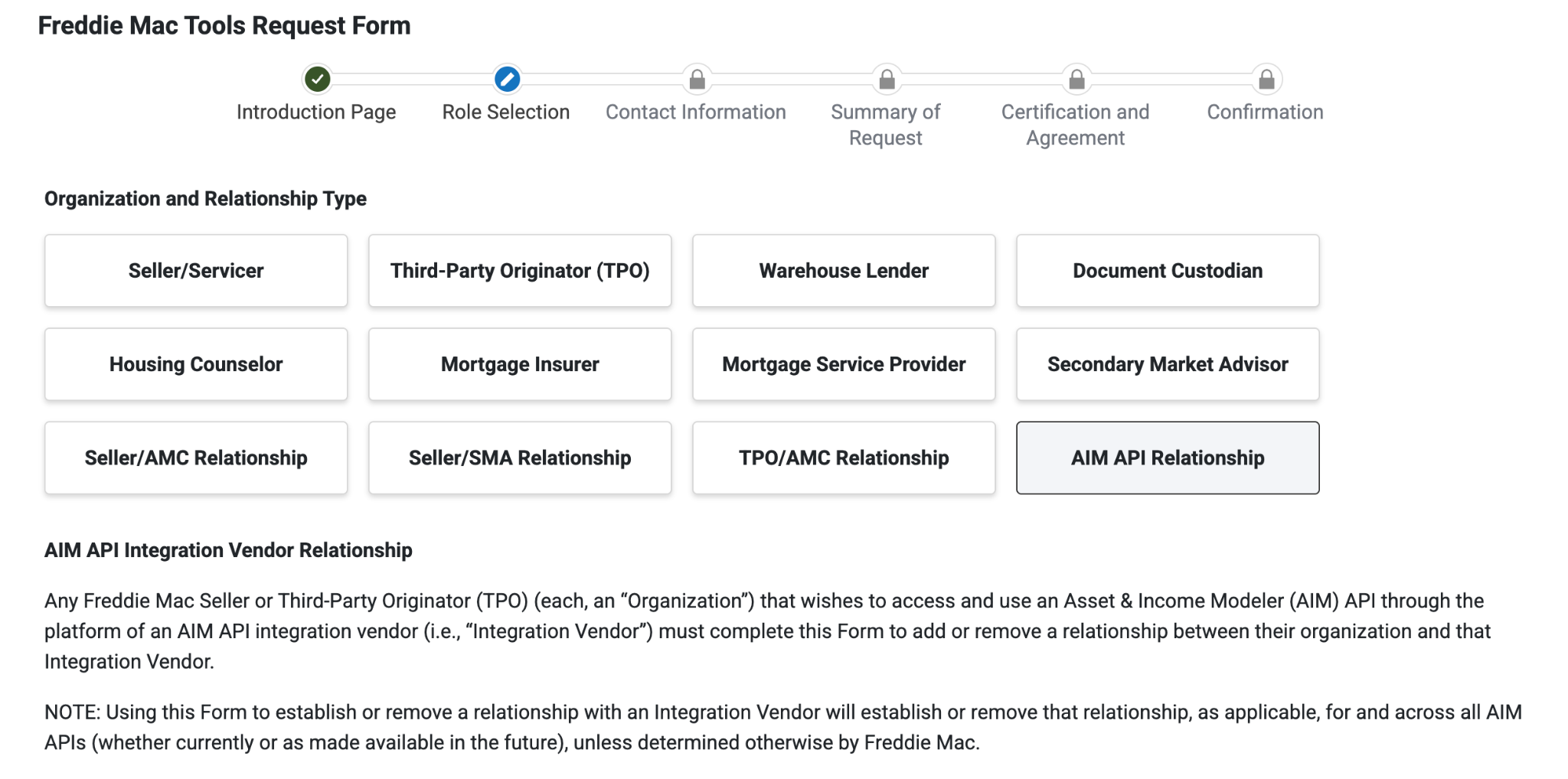
Visit the Freddie Mac Tools Request Form and select AIM API Relationship. Fill out your company information, then enter Ocrolus in the Integration Vendor Name field and [email protected] in the Integration Vendor Email field. This authorizes Freddie Mac to accept AIM Check requests submitted on your behalf by Ocrolus.

Select AIM API Relationship on the Freddie Mac Tools Request Form. Fill out your company info then designate Ocrolus as the vendor name and [email protected] as vendor email.
TipRegistering typically requires an authorized representative with provisioning rights for Loan Product Advisor. The form requires third-party cookies such as Freddie Mac recommends Microsoft Edge or Mozilla Firefox. If you can't access the form, contact your organization's Freddie Mac administrator.
Step 3: Provide your Seller number to Ocrolus
Send your Freddie Mac Seller/Servicer number to your Ocrolus contact or Implementation team. Ocrolus configures it on your organization and enables Freddie Mac as a loan program on the wage-earner tab.
NoteOcrolus configures your Seller number internally. There is nothing to enter in the Dashboard yourself. You'll be notified once Freddie Mac is available as a loan program on the wage-earner tab.
Part 2 - Running the Freddie Mac income calculation
Once Part 1 is complete, follow these steps to run an AIM Check on a loan and use the results.
Step 1 : Get the borrower's documents into the Book
Get the borrower's pay stubs and W-2s into the Book, either through your Encompass integration or by uploading them directly in the Dashboard, and let Ocrolus classify and extract them. This works the same way as the Fannie Mae income calculator. At minimum, provide one pay stub and one current-year W-2.
Step 2: Select Freddie Mac on the wage-earner tab
Open the borrower's wage-earner tab in Analyze for Mortgage. Freddie Mac is the default loan program as soon as Freddie Mac is selected in the loan-program drop-down. Ocrolus runs the income calculation automatically. There is no separate button to press.

Wage-earner tab with the loan-program drop-down set to Freddie Mac and the calculation running/complete.
NoteIf your loan is connected via Encompass, the default loan program is derived from your Encompass loan data, so Freddie Mac may already be selected for eligible loans.
Step 3: Review your results
When the calculation succeeds, the wage-earner tab shows the result. Read the following two outcomes together:
- Assessment (AIM900): Confirms Freddie Mac processed your request successfully. The status should reflect to AIM900. This does not by itself mean the income is eligible.
- Eligibility (AIM1000): Indicates whether each income type qualifies for representation-and-warranty (R&W) relief.
TipA successful assessment does not guarantee eligibility. Always check the eligibility result for each income type before relying on R&W relief.
If Freddie Mac cannot assess the income or the request has a data problem, an error message is returned on the tab. To learn more about the common error messages, error code, and how to resolve them, see the Troubleshooting and Known error sections.

Successful message

Error Message
Results view: success message, per-income-type eligibility, Freddie-derived income, and the certificate download.
Step 4: Switch to a manual calculation (optional)
If you'd rather use Ocrolus's own income calculation, select the Ocrolus option using the radio button on the right-hand side of the wage-earner tab. You can switch back to Freddie Mac at any time.

Step 5: Re-run the calculation (optional)
If you update the documents or want to submit again, select the refresh re-run button to run the Freddie Mac income calculation again.

Step 6: Download the certificate or import to Encompass
Download the Freddie Mac certificate PDF from the wage-earner tab. If your loan is connected via Encompass Partner Connect, select Import to Encompass to write the certificate titled Freddie Mac AIM Check Assessment, and the Freddie-derived income back to the loan.
Troubleshooting
| If you see… | What it means | What to do |
|---|---|---|
| Freddie Mac isn't available as a loan program | Your Seller number isn't configured yet, or the integration isn't enabled. | Confirm you completed Part 1 and that Ocrolus has enabled your organization. |
| An AIM error code on the tab (e.g. AIM901, AIM906, AIM909) | Freddie Mac couldn't assess the income — usually a missing document or linking issue. | Confirm the paystub(s) and W-2 are uploaded and linked to the borrower, then re-run. See the Known errors table for each code. |
| A request appears blocked or unavailable | The Dashboard is being accessed from outside the United States. | Access the Ocrolus Dashboard from within the U.S. and retry. |
| "Loan is locked" on import | The Encompass loan is locked. | Unlock the loan in Encompass and retry the import. |
| No value for bonus, commission, or overtime | Variable income needs supporting documentation. | Upload the documents that establish that income and re-run. |
Updated about 3 hours ago