
Conditions
Automated conditions use borrower document data, 1003 application data, AUS findings (DU/LPA), and GSE Selling Guide references to automatically generate loan conditions. Instead of creating conditions manually, underwriters receive a pre-populated set of conditions tailored to the borrower, the loan program, and the documents on file.
You can access automated conditions from the Conditions tab within a loan file in Inspect.
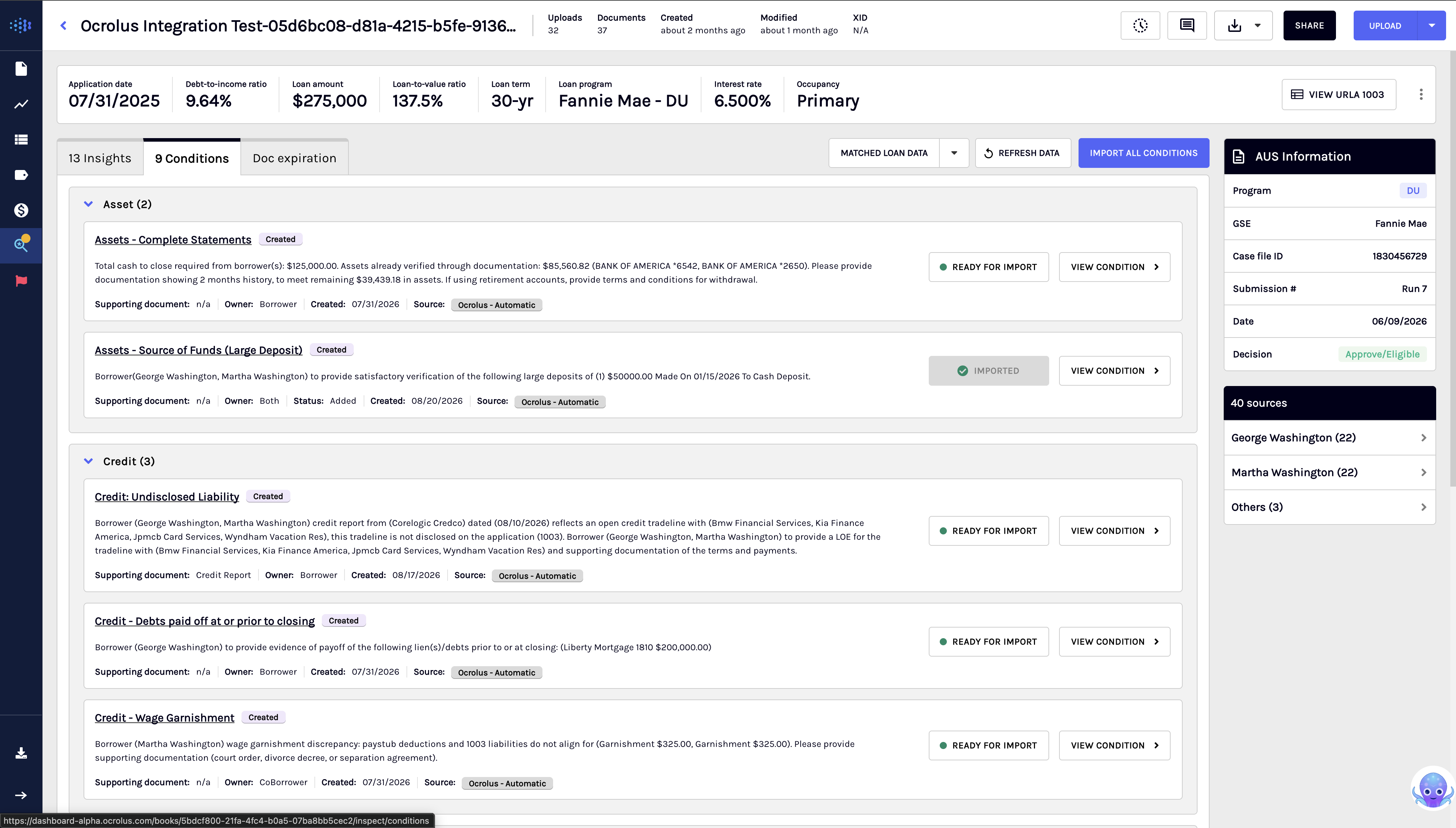
Automated conditions workflow
Automated conditions combine multiple data sources to generate loan conditions.
| Data source | Role |
|---|---|
| Borrower documents | Ocrolus extracts and analyzes data from uploaded bank statements, pay stubs, tax returns, and other borrower documents. |
| 1003 application | The Encompass 1003 provides borrower-reported assets, income, employment, and loan details as the baseline for comparison. |
| MISMO XML | When Encompass integration is not used, a MISMO XML uploaded through dashboard or API provides borrower-reported assets, income, employment, and loan details for comparison. |
| AUS findings XML | Desktop Underwriter (DU) or Loan Product Advisor (LPA) findings are used to validate and adjust conditions. For example, if DU requires only one year of tax returns, Ocrolus will not generate a condition requesting two. When Encompass integration is not used, an AUS findings XML uploaded in the Dashboard or through the API provides these findings. |
| Credit report XML | When Encompass integration is not used, a credit report XML uploaded in the Dashboard or through the API provides credit scores, tradelines, and inquiries for credit conditions and insights. |
NoteConditions are generated automatically once documents are processed. No underwriter action is required to create them.
Not a rules engine
Ocrolus reads your AUS findings to validate and adjust the conditions it generates. When a waiver or reduced documentation requirement appears in the AUS output, the system respects that determination and avoids over-conditioning.
Conditions tab overview
The Conditions tab displays all automatically generated conditions in a list view. From this view, you can import a condition individually or open it to review the full details. This tab contains the following details:
| Fields | Description |
|---|---|
| Name | The condition name mapped to your organization's existing Encompass condition templates. |
| Status | Current state of the condition (for example, pending review, imported, cleared, or waived). |
| Description | Borrower-specific description referencing the borrower name, relevant account, and exact dollar amounts. |
| Supporting document | The document that triggered or supports the condition. |
| Owner | Indicates whether the condition applies to the borrower, co-borrower, or both. |
| Created date | Timestamp showing when the condition was generated. Useful when additional documents trigger new conditions. |
| Source | Indicates whether the condition originated from Ocrolus document analysis or AUS findings. |
Condition detail view
Selecting a condition opens the detailed condition record. The available details are:
| Field | Description |
|---|---|
| Condition name | Mapped to your organization’s Encompass condition templates. Ocrolus aligns naming conventions with your organization during onboarding. |
| Description | Each description is borrower-specific. It references the individual borrower by name, identifies the relevant account, and cites exact dollar amounts. These are not boilerplate descriptions — they are tailored to the loan file. |
| E-folder document needed | When a condition is imported into Encompass, Ocrolus also creates the associated document placeholder in the E-folder. The condition and the expected document are linked from the point of import. |
| Owner | Indicates whether the condition applies to the borrower, co-borrower, or both. |
| Comments | You can add free-text comments to any condition for internal notes, processor instructions, or audit documentation.. |
| Guideline reference | Each condition includes a citation to the specific Fannie Mae or Freddie Mac Selling Guide section that supports it. Processors can use these references for training, and underwriters can use them to justify or defend the condition during quality review.. |
Reviewing and taking action on conditions
From the condition detail view, you can take the following actions:
- Import: Push the condition to Encompass. This creates both the condition object and the E-folder document placeholder.
- Discard: Remove the condition if it is not applicable. Discarding a condition provides feedback to the Ocrolus engine and helps improve future condition generation.
Importing conditions to Encompass
After reviewing generated conditions, you can push them to Encompass individually or in bulk.
Import workflow
- Review conditions on the Conditions tab.
- Discard any conditions that are not applicable.
- Import conditions individually or use Import All to push all reviewed conditions at once.
- Encompass creates both the condition object and E-folder placeholder simultaneously.
- Status synchronization begins immediately after import.
Bidirectional status sync
Once conditions are imported, status updates remain synchronized between Ocrolus and Encompass. This ensures both systems remain consistent without manual updates.
- When your team clears or waives a condition in Encompass, the update appears on the Ocrolus Conditions tab.
- When a status change occurs within Ocrolus, it is pushed back to Encompass.
AUS integration
Ocrolus reads AUS findings (DU or LPA) and uses them to validate and adjust generated conditions. This ensures that Ocrolus-generated conditions remain consistent with the AUS output used by your underwriting team.
For example:
- If Desktop Underwriter specifies that only one year of tax returns is required, Ocrolus will not generate a condition requesting two.
- If an asset waiver is present in AUS findings, asset verification conditions are adjusted accordingly.
Condition categories
Automated conditions currently support the following categories:
| Category | Details |
|---|---|
| Assets | Bank statements, investment accounts, gift funds, and asset verification conditions. |
| Credit | Credit report findings and credit-related conditions. |
| Income | Pay stubs, W-2s, tax returns, and income verification conditions. |
| Insurance | Insurance conditions are based on the Homeowner Insurance Policy - Insurance Binder, Standard Flood Hazard Determination Form, and Title Insurance Policy documents on the loan file. |
GSE coverage includes Fannie Mae and Freddie Mac guidelines, and condition generation references the relevant Selling Guide sections for both agencies.
Insurance conditions
Inspect checks homeowners (hazard) insurance and flood documentation on a loan file and automatically generates conditions when something is missing, incomplete, or does not meet agency requirements. Insurance conditions appear in the Insurance category on the Conditions tab.
Each condition is evaluated only against documents for the subject property on the 1003. Policies for other properties, such as REO properties, are ignored.
| Condition | Raised when |
|---|---|
| Hazard insurance policy or declarations page missing | No homeowners policy, declarations page, or binder for the subject property is on file. |
| Evidence of insurance incomplete - required elements missing | A subject-property policy is missing the named insured (every borrower must be named), mortgagee, property type, dwelling coverage (greater than $0), effective date, or premium (greater than $0). |
| Named insured on Hazard insurance does not include all title holders | The policy does not name every title holder listed on the title insurance policy or preliminary title report. A captured title document must be on the file. |
| Insurance policy not in force at closing | The policy effective date is after the closing date on the 1003, or the policy expires on or before it. This condition does not fire when the loan has no closing date. |
| Flood zone determination missing | No Standard Flood Hazard Determination Form (SFHDF) for the subject property is on file, or the form is missing the flood zone, NFIP community number, or date of determination. |
| Property in a Special Flood Hazard Area - flood insurance required | The SFHDF or the appraisal (Form 1004) shows that the property is in a Special Flood Hazard Area. |
The HOI subject property address does not match loan insight flags a borrower's homeowners policy when its address does not match the 1003 subject property. The comparison includes the condo unit number.
The following limitations apply:
- Flood insurance declarations pages are attached to the Special Flood Hazard Area condition but are not read. The underwriter clears this condition after review.
- A flood zone code on its own, such as "AE", does not raise the Special Flood Hazard Area condition.
- Evidence of insurance incomplete does not check deductibles, endorsements, the mortgagee cancellation-notice clause, or the insurer's signature.
Relationship to Inspect insights and manual conditions
Automated conditions complement, rather than replace, existing Inspect workflows.
- Inspect insights (discrepancies between borrower documents and the 1003) continue to appear on the Inspect tab. These can still be used to manually create conditions using the Create Condition button.
- Auto-generated conditions appear on the Conditions tab and are produced through broader analysis that includes AUS findings and GSE guideline references.
- Both manually created and automatically generated conditions can be imported into Encompass and participate in bidirectional status synchronization.
Conditions API
The Conditions API lets you list, create, update, and delete loan conditions on an Ocrolus book programmatically, without using the Inspect Dashboard or an Encompass integration. This is intended for integration and engineering teams at lenders who do not use Encompass or MeridianLink.
The API supports four operations:
| Operation | Method and path |
|---|---|
| List conditions | GET /v2/book/{book_uuid}/conditions |
| Create a condition | POST /v2/book/{book_uuid}/conditions |
| Update a condition | PUT /v2/book/{book_uuid}/conditions/{condition_uuid} |
| Delete a condition | DELETE /v2/book/{book_uuid}/conditions/{condition_uuid} |
For full endpoint documentation, request and response schemas, and code examples, see the API reference:
Returns all conditions on a book, with optional status filtering.
Creates a new condition on a book.
Partially updates an existing condition.
Soft-deletes a condition. The condition is set to Cleared status and its history is preserved.
Uploads a MISMO XML loan file so Inspect can use the 1003 application data for insights and automated conditions.
Uploads a Desktop Underwriter (DU) or Loan Product Advisor (LPA) findings XML file so Inspect can align conditions with the documentation your AUS requires.
Uploads a MISMO credit report XML file so Inspect can generate credit conditions and insights.
Updated 7 minutes ago