
Ocrolus API flow
Leverage the Ocrolus APIs to embed Docs-to-Digital into your own systems. This method lets you upload Plaid JSON and bank statement data to a Book, trigger automated matching, and retrieve insights programmatically. By following the steps below, you can compare digital (Plaid) and analog (PDF) data at scale, receive mismatch notifications, and review detailed results through the API or SMB Excel export.
PrerequisiteBefore you begin, make sure you’ve completed all the requirements listed in the Prerequisites section.
To use the API approach, perform the following steps:
Step 1: Upload transaction data
To upload Plaid transaction data to a Book that contains bank statements, perform the following steps:
-
Use the Upload PDF to Book endpoint or the Upload Mixed Document PDF to Book endpoint to upload bank statements for underwriting the borrower.
-
Complete the underwriting and approval process as usual.
-
When ready to fund, prompt the borrower to connect their bank account via Plaid.
-
Using your organization's Plaid account, obtain the bank transaction data for the same borrower. Ocrolus supports both Plaid Asset Report JSON and Plaid Transactions JSON formats.
-
Use the Upload Plaid JSON to Book endpoint to upload the retrieved Plaid JSON files to the corresponding Book. Include the query parameter
upload_intent=docs_to_digitalto trigger the Docs-to-Digital algorithm. You can upload multiple JSON files to support multiple bank accounts or extended transaction timelines.Available values for
upload_intentare:-
docs_to_digital: Compares Plaid transactions with bank statement transactions in the Book to detect mismatches. -
add_analytics: Adds transactions from the Plaid JSON to the Book without mismatch detection.
-
Alternative: Trigger Docs-to-Digital on an existing Plaid JSON
If a Plaid JSON is already uploaded to the Book, with or without upload_intent=docs_to-digital then trigger Docs-to-Digital directly instead of re-uploading the file:
To upload existing Plaid JSONPlaid transaction data to a Book that contains bank statements, perform the following steps:
-
Get the document UUID of the previously uploaded Plaid JSON from the Book information or Book list endpoint.
-
Call the Run Docs-to-Digital on an existing Plaid JSON endpoint with the Book's
book_uuidand the document UUID(s).
- Check the response. Documents in
accepted_doc_uuidsstart processing. Documents inskipped_doc_uuidsalready have Docs-to-Digital results and are not reprocessed.
Step 2: Automatic matching
Once the JSON files are uploaded, Ocrolus automatically performs transaction matching by:
- Comparing Plaid and bank statement data: Ocrolus verifies that both Plaid transactions and bank statement data reference the same underlying bank account within the Book.
- Flagging mismatched transactions: Any discrepancies or mismatched transactions are identified and flagged for review. Notifications are sent via email or webhook for further action.
Step 3: Analyze updated insights
Once the matching process is complete, Ocrolus sends a notification summarizing the results. Notifications are delivered via one of the following methods:
-
Webhooks: If no mismatches are found, the
book.pacing.no_discrepancies_foundevent will trigger and notifications are sent confirming that the data from both sources (Bank Statements and Plaid JSON) match. If mismatches are found, the **book.pacing.discrepancies_found** event will trigger and notifications are sent with discrepancies for further action. To learn more about the webhook events, see Webhook events. -
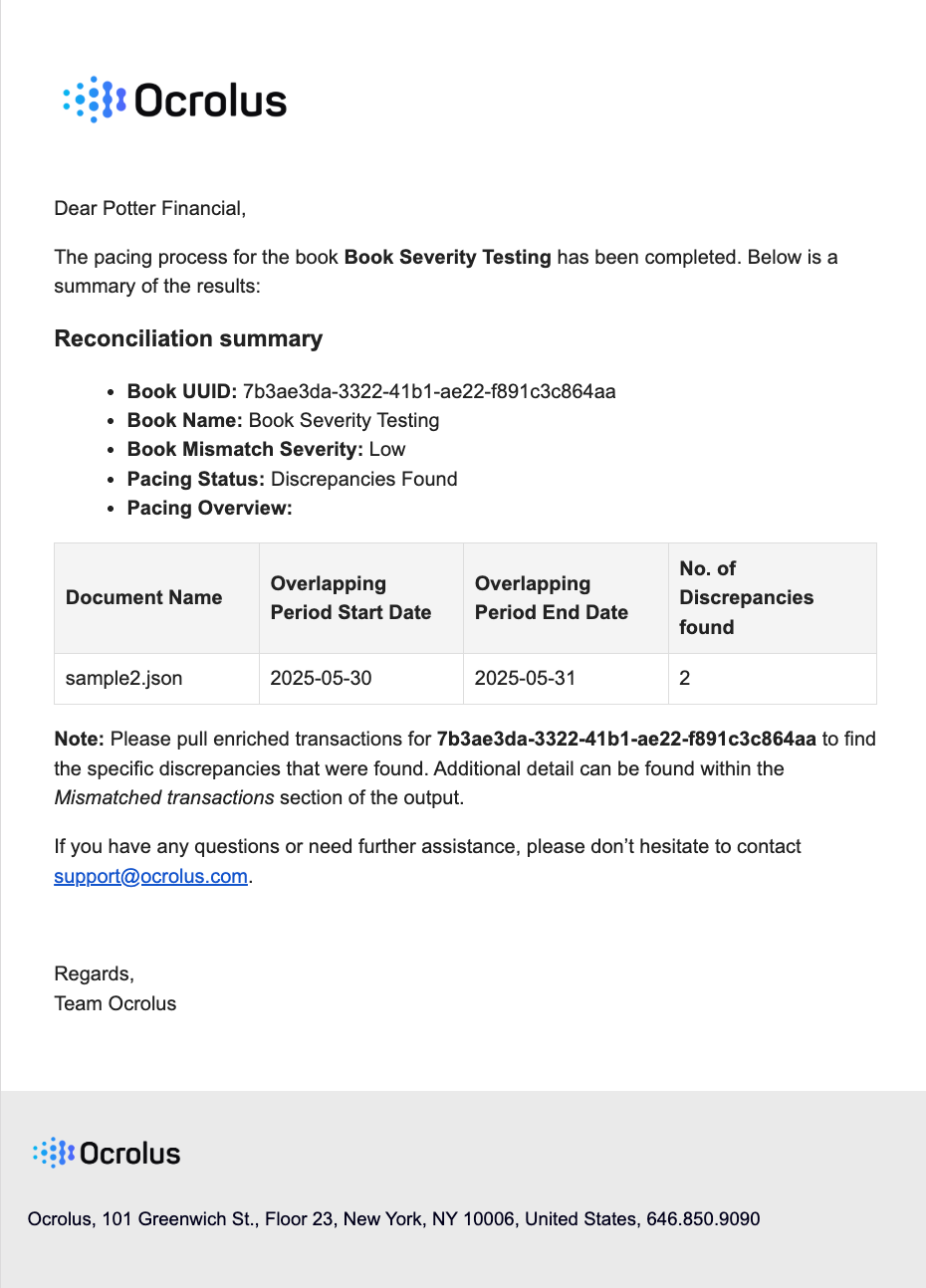
Email summaries: If mismatches are found, an email notification provides an overview of the mismatched transactions for review. The email includes details on discrepancies, enabling users to take the appropriate action.
NoteClients must provide the email addresses where result notifications should be sent. These email IDs should be shared with your Ocrolus Account Manager or Solutions Engineer during onboarding or integration setup. Notifications will be sent only to the specified recipients.
4: Review mismatch transactions
Now that Docs-to-Digital matching is complete, you can analyze the output to review mismatched transactions. To analyze mismatched transactions via API, perform the following steps:
-
Access the Enriched transaction endpoint and refresh the data.
-
Review the **
mismatched_transactions**node, which includes:-
txn_pk: A unique identifier for the transaction. -
txn_date: The date when the transaction occurred. -
description: A brief detail or label associated with the transaction. -
amount: The monetary value of the transaction. -
uploaded_doc_pk: A unique identifier for the uploaded document associated with this transaction. -
uploaded_doc_format: The source of the transaction data, such as BANK_STATEMENT or PLAID. -
severity: Indicates the level of importance or risk associated with the transaction (e.g., low, medium, high). -
reason_code: A string representing the reason or category for a flagged or mismatched transaction. -
related_txn_pk: The unique identifier of a related transaction, used to link associated records. -
tags: Keywords or labels assigned to the transaction for easier classification and filtering (e.g., "fintech", "fintech_loan"). -
counterparty: The name of the counterparty involved in the transaction.
NoteTo learn more about the **
mismatched_transactions** payload, see Enriched transaction endpoint response. -
Updated 19 days ago