
Insights
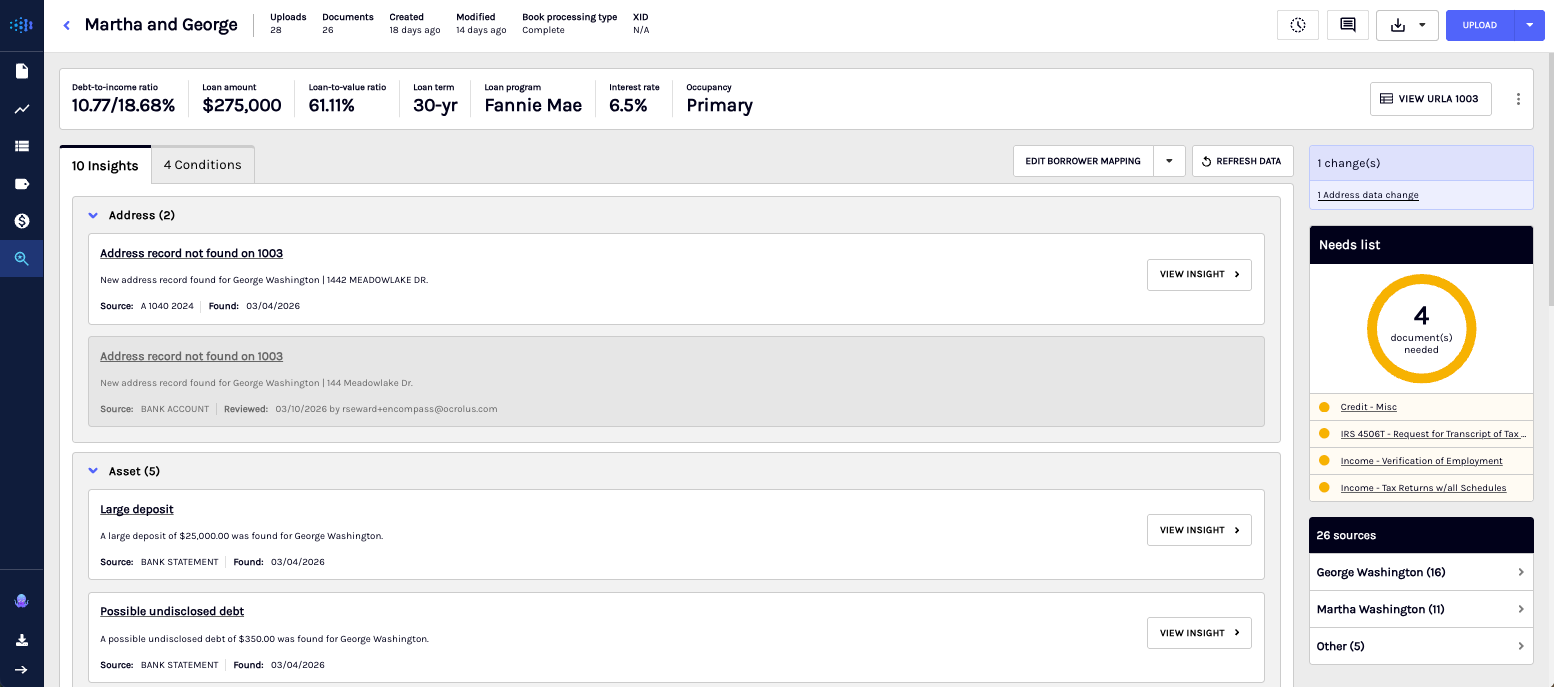
The Insights tab highlights discrepancies between the data found in borrower documents and the information reported on the 1003 application. Insights are automatically identified during document processing and displayed in a streamlined list so you can quickly review flagged items. Each insight represents a potential issue that may require human judgment to determine whether action is needed.
Identifying a discrepancy
Just as fuzzy and exact matching are used to group entities, Ocrolus applies the same approach to identify discrepancies during the application review process. Ocrolus compares borrower documents with the data in the 1003 form, detecting differences in key information such as names, addresses, and other details.
Using fuzzy logic, Ocrolus recognizes variations such as different spellings or formats. Exact matching is used for precise data comparisons. When a discrepancy is detected, the system alerts you so you can review and resolve the issue, helping ensure that the loan file remains accurate.
Resolving a discrepancy
The following workflow helps you review and resolve discrepancies.
- Discrepancy consolidation: After borrower mapping is completed, a summary of identified discrepancies appears at the top of the screen. This overview highlights the types of discrepancies found and the number of instances for each type.
- Navigating discrepancies: To investigate further, select a specific discrepancy type to view detailed information and resolve issues. You can also navigate directly to specific sections (for example, Borrowers) where discrepancies are clearly labeled by type.
- Discrepancy details: Selecting a discrepancy opens a pop-up window showing detailed information. This interface allows you to efficiently review, manage, and resolve discrepancies while maintaining data accuracy and consistency.
Field mismatch discrepancy
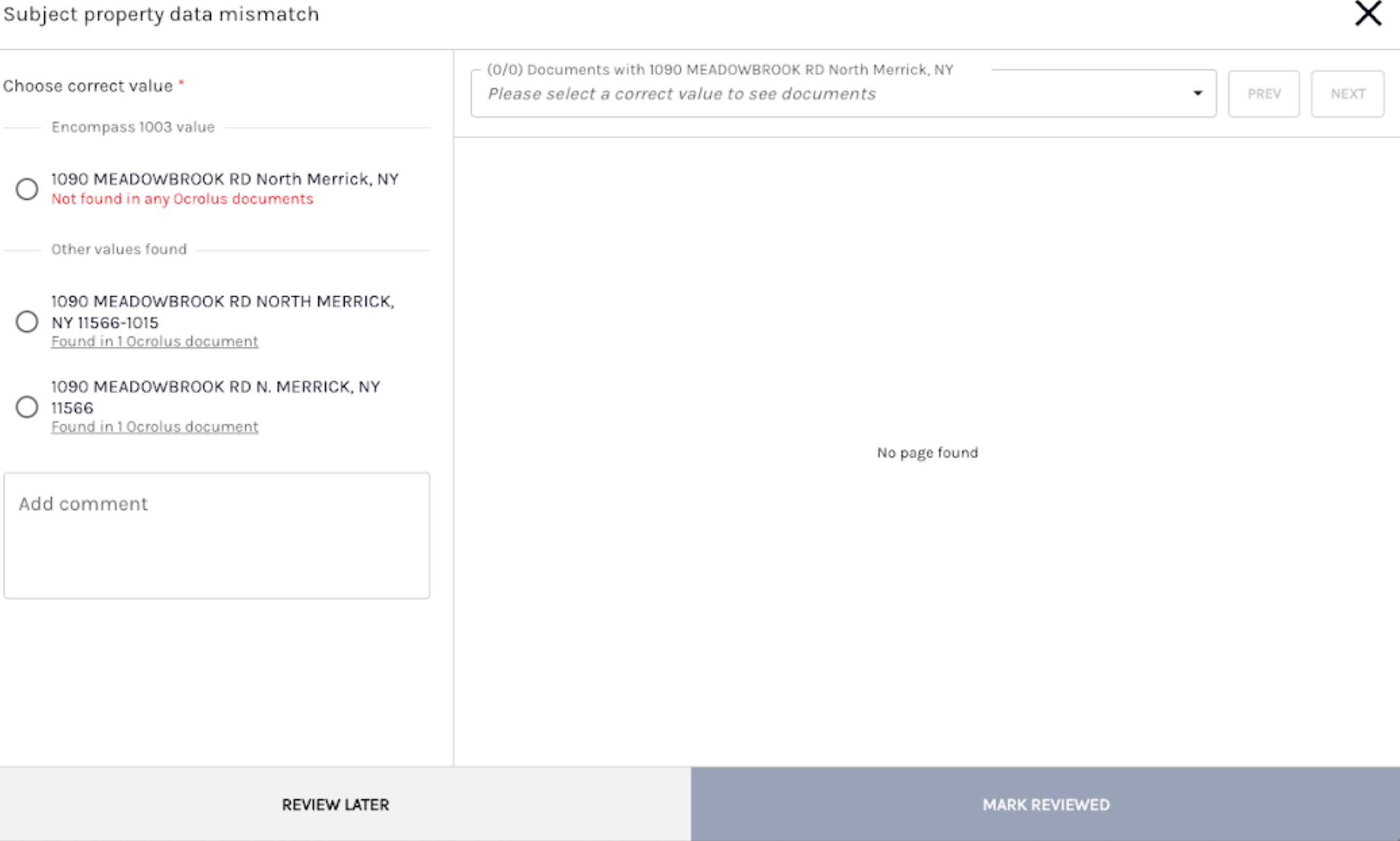
When data entered in Encompass differs from information found in borrower documents, field-level mismatches are flagged. Navigate to the discrepancy as described earlier to open a detailed review window.
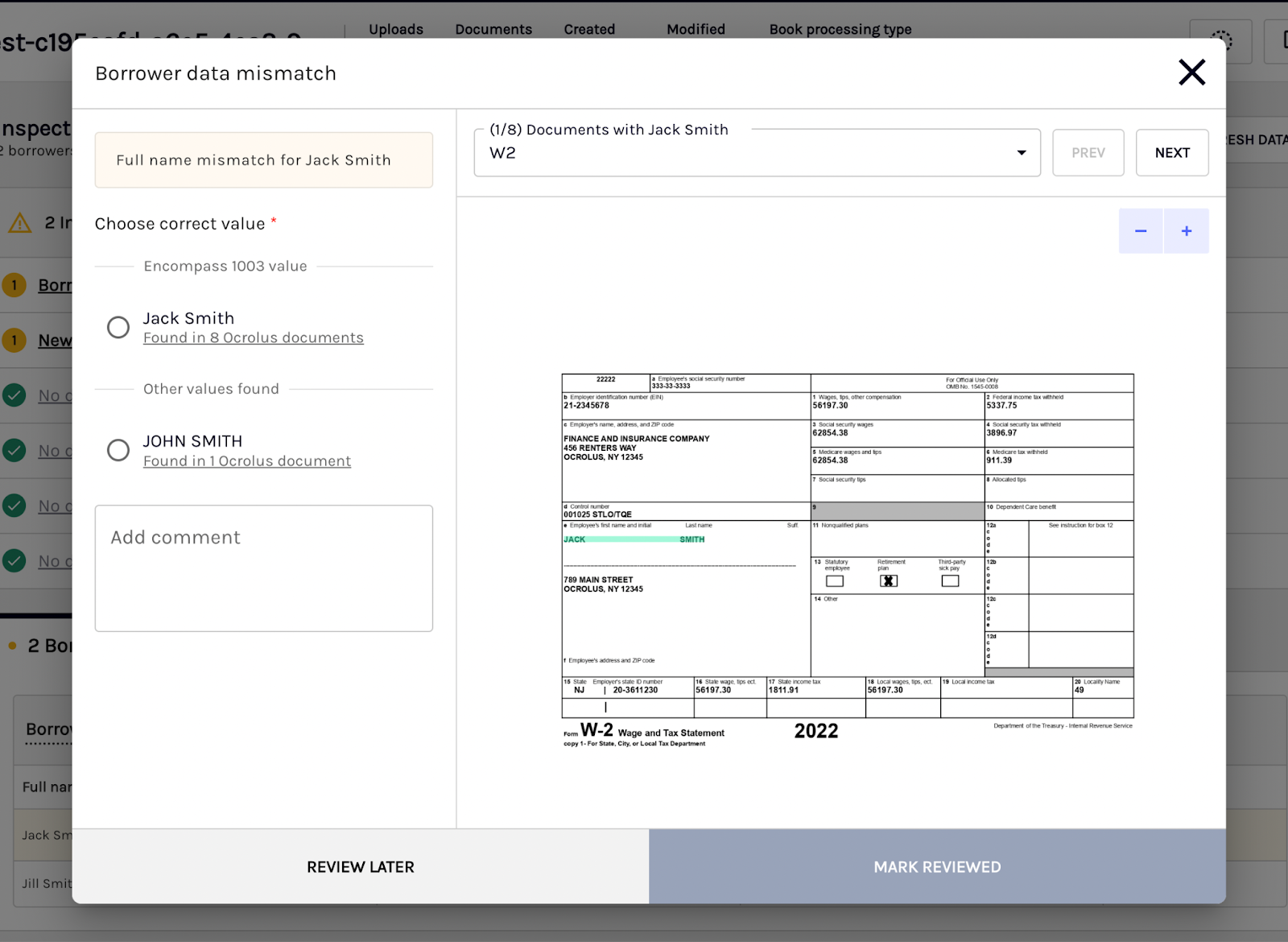
This screen provides the following details:
- 1003 form value: The value originally entered in the Encompass 1003 form.
- Ocrolus document values: Variations found across borrower documents, along with the number of documents supporting each variation.
You can preview related documents using the document preview pane on the right side of the screen. Select a document type from the dropdown menu to view more details.
To resolve the discrepancy:
- Select the correct value using the appropriate radio button.
- Optionally add a comment to provide additional context.
- Choose one of the following actions:
- Mark Reviewed: Resolve the discrepancy and move to the next item.
- Review Later: Defer action and revisit the discrepancy later.
New record found discrepancy
When additional entities appear in borrower documents that were not disclosed on the 1003, Ocrolus flags a New record found discrepancy. Selecting the discrepancy opens a detailed review window where you can examine the new information and decide how to handle it.
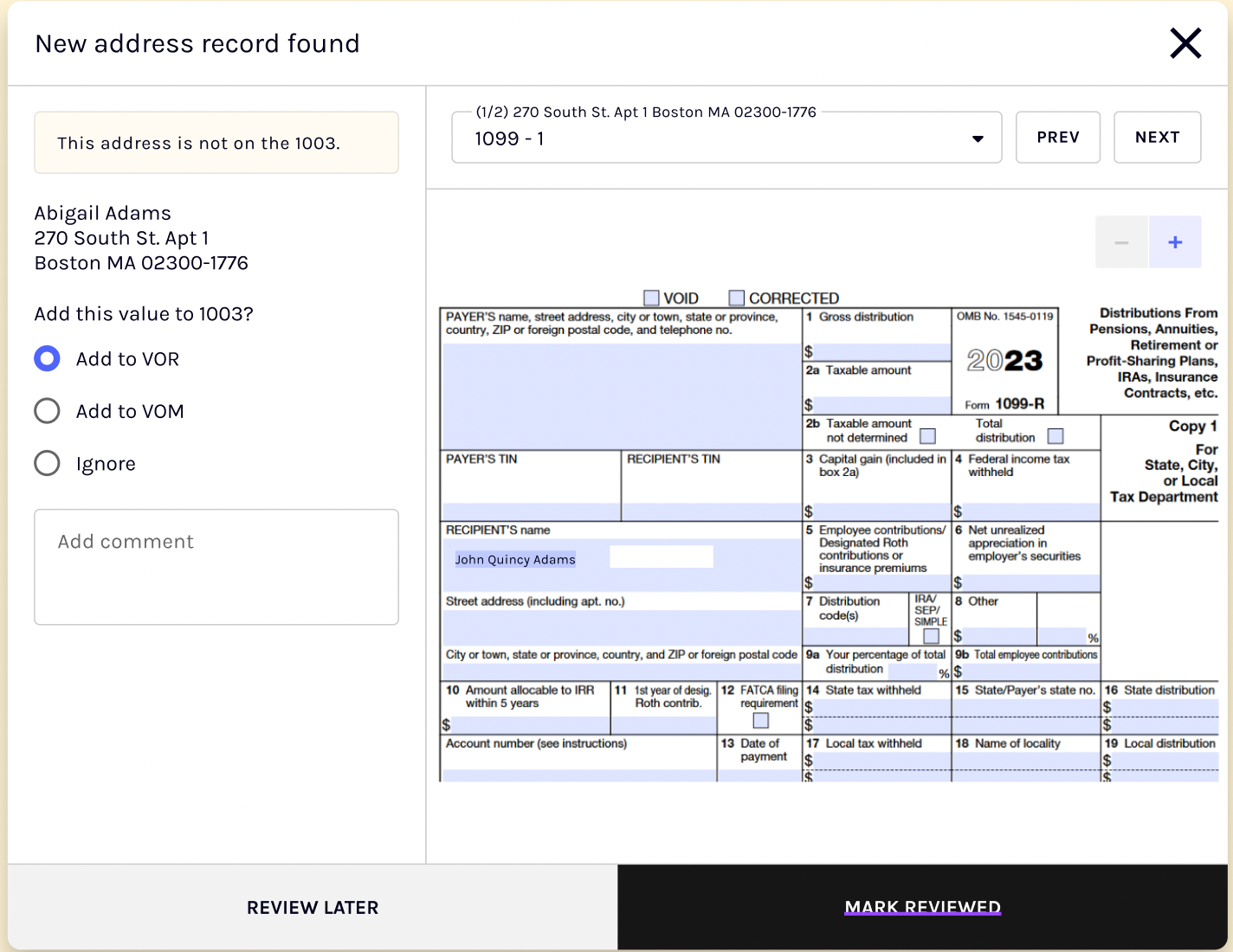
Discrepancy details
| Item | Description |
|---|---|
| New record details | Information about the newly identified entity found in Ocrolus documents. |
| Associated borrower | The borrower linked to the new record. |
| Related documents | A list of documents where the discrepancy appears. |
| Document preview | A preview pane that lets you review the document content for verification. |
To resolve the discrepancy, choose one of the following actions:
- Ignore Discrepancy: Use this option if the new record is not relevant or does not require action.
- Import Value to Encompass: Updates the borrower data directly in Encompass using the new information.
After choosing an action, select one of the following:
- Mark Reviewed to finalize the resolution.
- Review Later to defer the decision and revisit the discrepancy later.
No supporting document discrepancy
When an entity listed on the Encompass 1003 does not have supporting documentation, a No Supporting Document discrepancy is flagged.
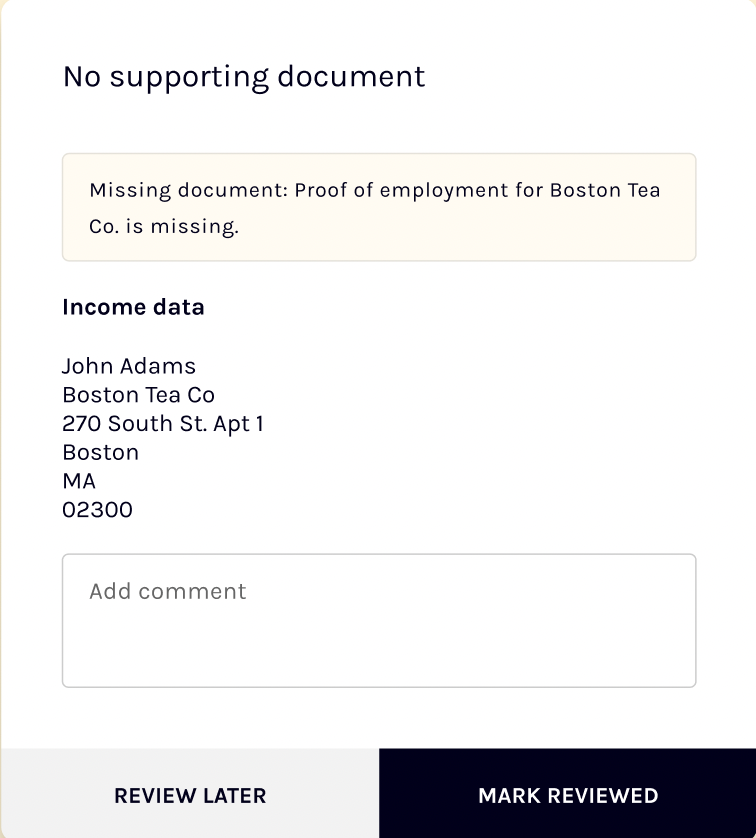
The review screen displays details about entities lacking supporting documentation and the borrower associated with each entity.
You can resolve these discrepancies by selecting:
- Mark Reviewed – Resolve the issue immediately and update borrower records in Encompass.
- Review Later – Defer the decision and address the discrepancy later.
Condition management
You can create, track, and manage conditions directly within Inspect to simplify the review process. Conditions can be added quickly, synchronized with systems such as Encompass, and updated in real time.
Each condition includes a complete audit trail, helping teams maintain transparency, support compliance requirements, and stay organized.
NoteCondition management is available to organizations subscribed to the Ocrolus Conditions product. To enable this feature, contact your account manager or email [email protected].
Create conditions directly from discrepancies
To create conditions from discrepancies:
- Select Create Condition next to any Missing, Mismatched, or Undisclosed finding in Inspect.
- Enter the condition name, description, and required document.
- The condition is logged in Inspect and can be synced to Encompass with a single click.
Sync conditions to Encompass
To sync conditions directly to Encompass:
- Use the Import button to push created conditions to Encompass.
- Inspect condition statuses are mapped to Encompass statuses, allowing you to track condition progress directly within Inspect.
View and manage condition status
You can track condition statuses with real-time updates. Review each condition's progress and update, dismiss, or resolve conditions directly from the Inspect interface.
Audit trail for every condition
Each condition includes a complete audit trail that records:
- Who created the condition
- When it was created
- The reason for its creation
This tracking supports compliance requirements, improves oversight, and supports future automation.
Viewing reviewed discrepancies
On the Inspect page, resolved discrepancies appear in the Reviewed section.
This section displays:
- Previous and updated field values
- Reviewer comments
- Timestamp of the review
To update the Encompass 1003 form with the reviewed information, select Import now.
TipThis action applies only to discrepancies that have not yet been imported.
Importing reviewed discrepancies to the Encompass 1003 form
You can import reviewed discrepancies into Encompass by selecting Import to Encompass from the Inspect page. This action opens the import screen.
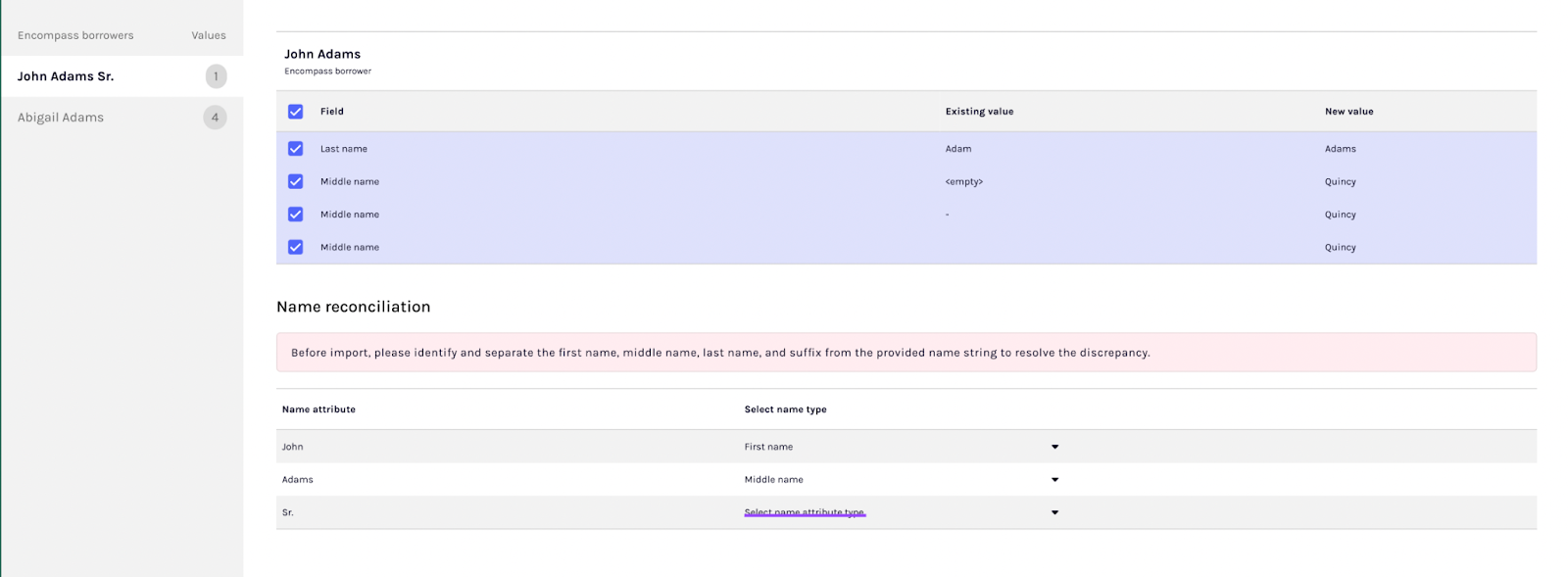
- Import screen overview: The import screen displays a list of borrowers in the first column. You can navigate between borrowers using this panel.
- Reviewed discrepancy details: For each borrower, discrepancies are grouped by type:
- Field Changes – Shows the existing value and the new value for each field.
- New Records – Shows the new information that will be imported into Encompass.
- Import functionality: All discrepancies are automatically selected for import. You can deselect any item if you do not want to import the updated details.
- New address records: When importing new address records, select the appropriate address type before completing the import. The available address types include Current, Past, and Mailing address.
Name reconciliationWhen importing borrower name changes, an additional step is required because Ocrolus identifies name discrepancies based on the entire name rather than separate components (first, middle, and last names). Before importing the updated name into Encompass, complete the Name Reconciliation step. During this step, you'll break down the borrower’s full name into individual parts (First Name, Middle Name, and Last Name) directly on the import screen.
Discrepancy detection logic
The following logic is currently applied in Ocrolus Inspect for discrepancy detection and document handling.
Middle name mismatch logic
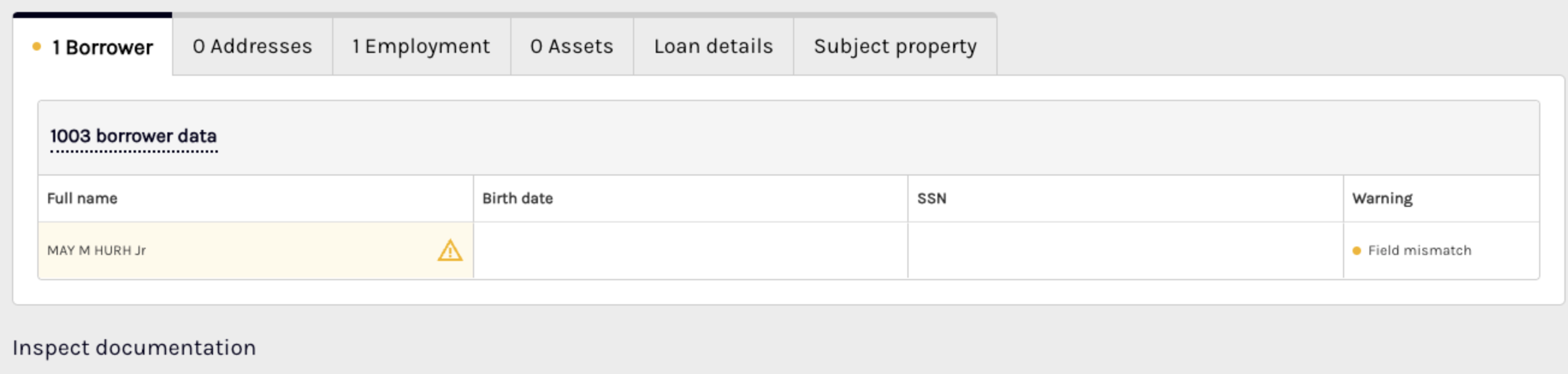
- Discrepancies are flagged when full middle names or suffixes differ.
- Middle initials alone do not trigger a mismatch.
- Suffixes such as Jr, Sr, III are considered for mismatch alerts.
No supporting document flag for date of birth
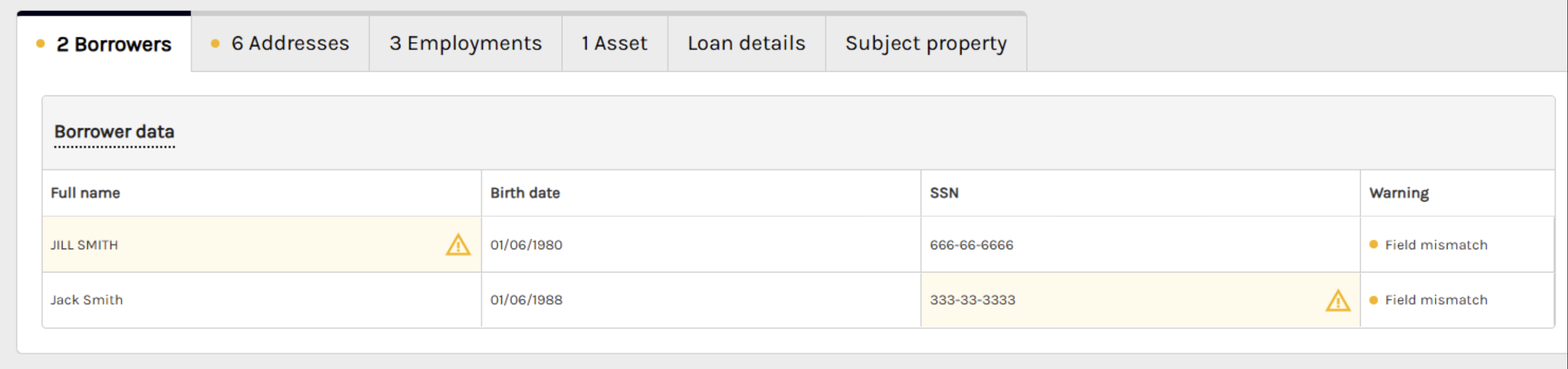
Missing documentation for a borrower’s date of birth does not trigger a No Supporting Document flag.
Parcel ID comparison
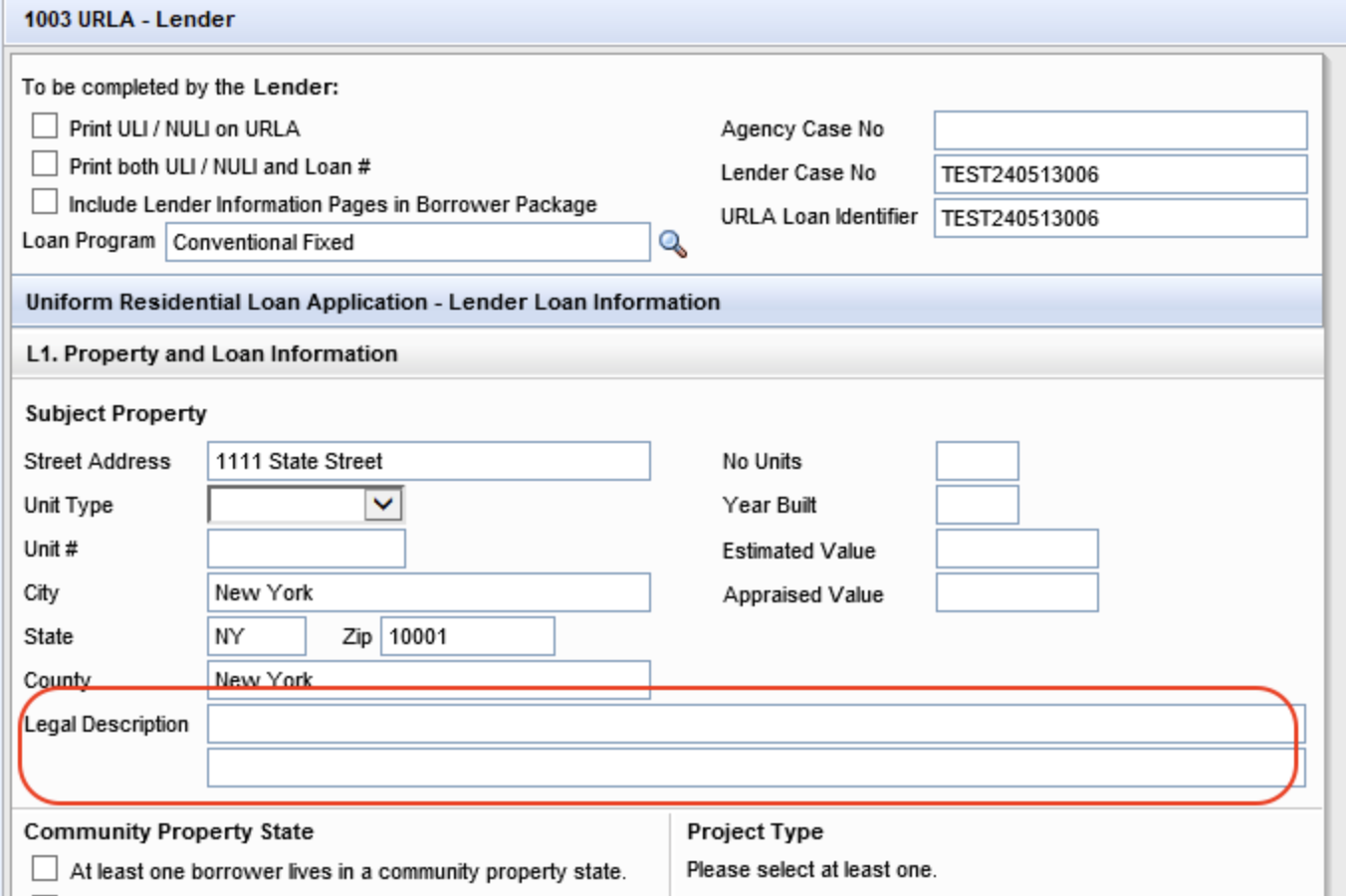
Parcel IDs are matched exactly across the following documents:
- Purchase Contract
- 1004 Uniform Appraisal Report
- 1032 Residential Appraisal Report
- Encompass 1003 legal description
ZIP code handling
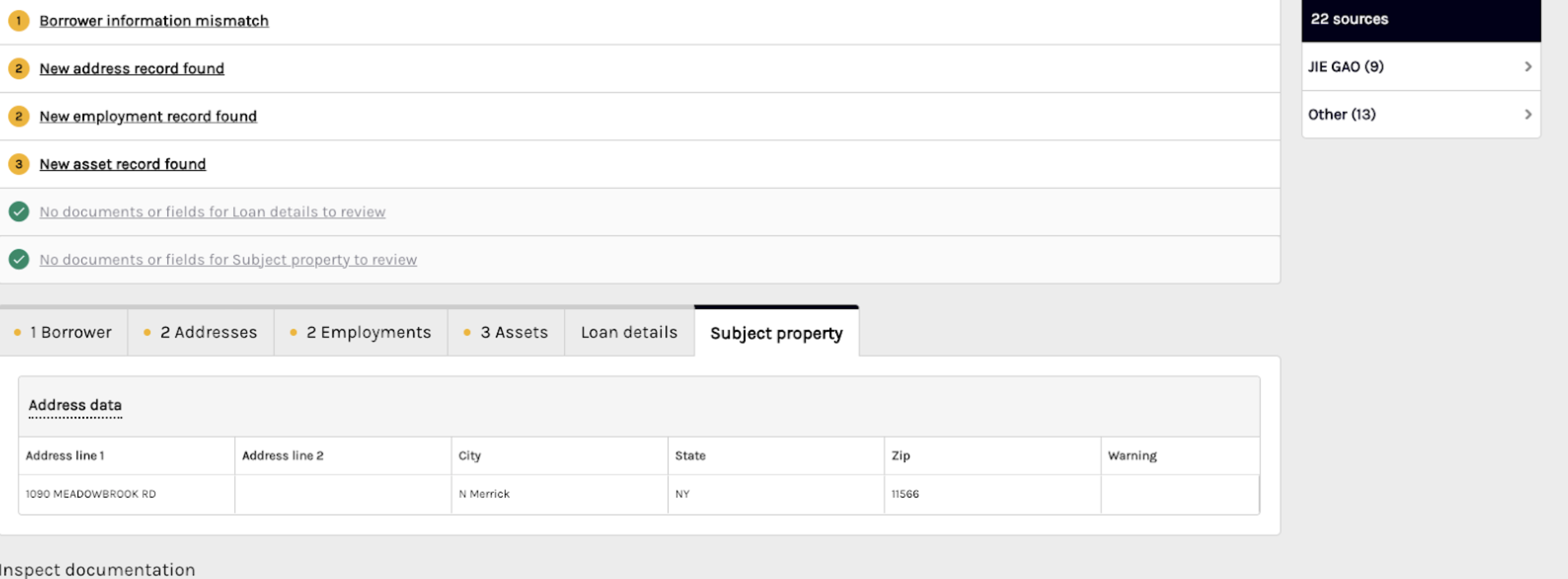
Trailing +4 ZIP code digits (for example, 12345-6789) are ignored during subject property comparison.
Discrepancies are flagged only when the main five-digit ZIP code is missing. Differences in the +4 digits alone do not trigger a warning.
Loan detail comparison
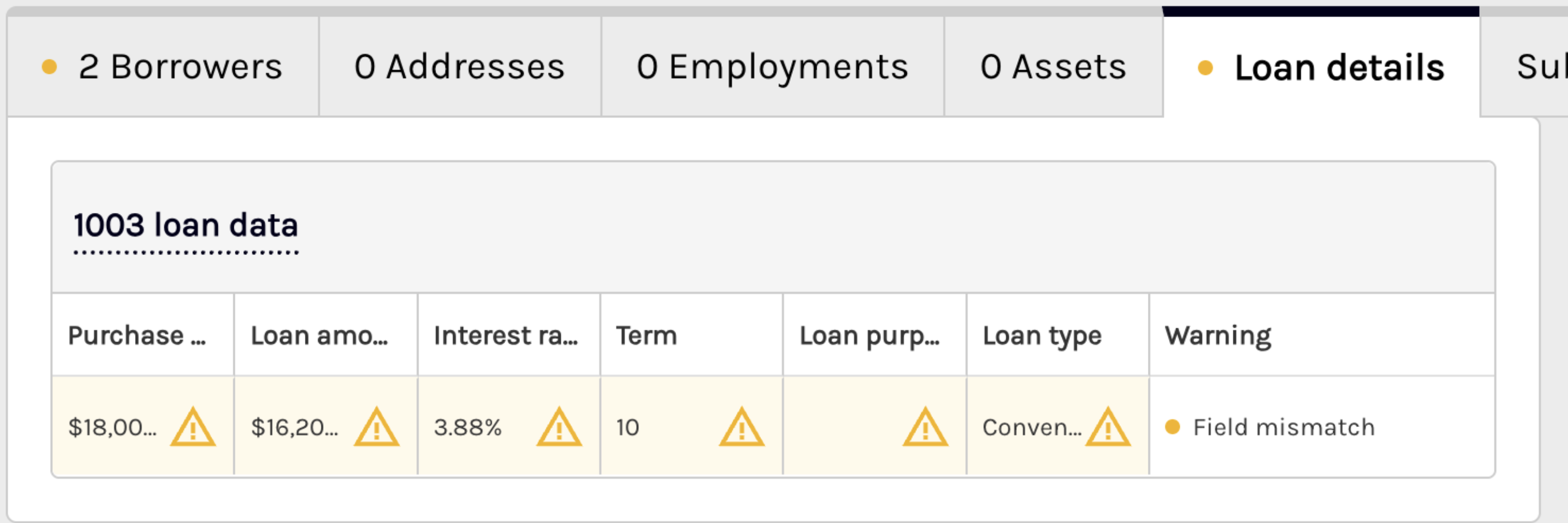
Loan details are evaluated independently across documents. Each loan component is reviewed separately to prevent mismatch alerts caused by missing or incomplete references in individual documents.
Asset analysis
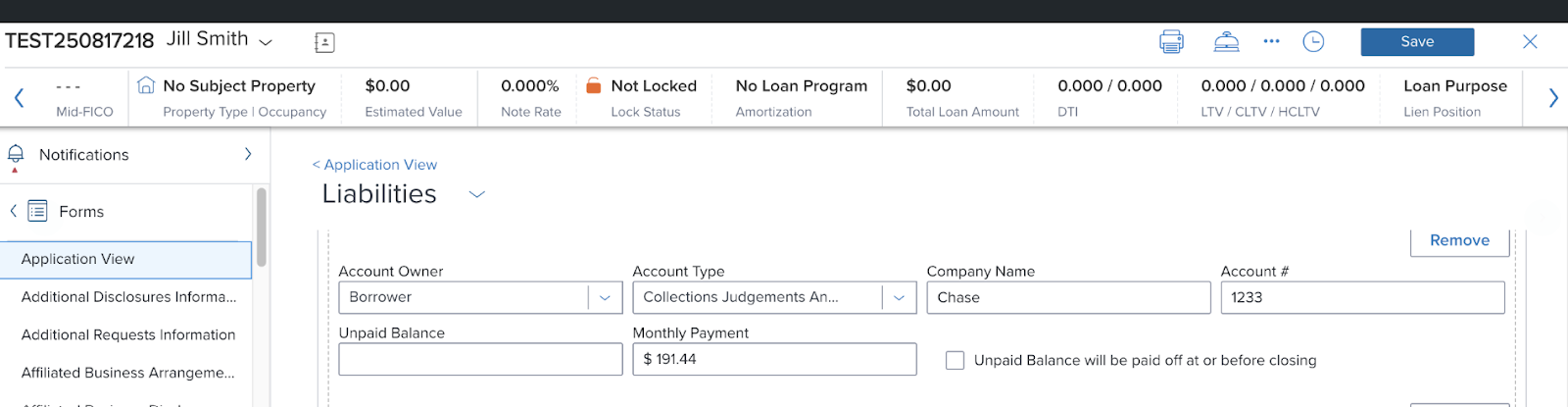
Inspect automates the manual and time-consuming asset review process in mortgage underwriting. It compares borrower bank statements, pay stubs, and credit liabilities from the Encompass 1003 to identify risks such as undisclosed debts, large deposits, wage garnishments, and Buy Now Pay Later (BNPL) services.
By surfacing these red flags automatically, it helps you:
- Reduce underwriting time per file
- Improve accuracy and consistency in asset reviews
- Stay compliant with FHA, VA, USDA, and Conventional loan program guidelines
- Push findings as conditions directly to Encompass in fewer than five clicks
It is designed for underwriters, loan processors, loan officers, and lending operations teams who want to improve efficiency, accuracy, and compliance across their workflows.
The data is compared across the following entities and fields:
| Entity | Fields |
|---|---|
| Employment/Income | Wage Garnishment |
| Assets | Bank or institution name, account number, and account type |
End-to-end workflow
The end-to-end workflow of the asset analysis below helps upload documents, automate analysis, review, and condition synchronization to ensure a streamlined and compliant asset review process.
- Upload and sync documents: Using Inspect begins with uploading borrower bank statements and pay stubs to Ocrolus, while liabilities from the Encompass 1003 are automatically synced via API.
- Automatic analysis: Once documents are available, the analyzer runs automatically, comparing assets to liabilities and applying loan-program rules to detect undisclosed debts, wage garnishments, BNPL obligations, and large deposits above the configured thresholds.
- Review findings in Inspect: The results are displayed in Inspect, where underwriters can quickly scan the summary view for the number and types of issues detected. Opening a flagged item shows detailed evidence, including the supporting document snippet and matched 1003 data, along with a clear explanation of why it was flagged. When severity scoring is enabled, findings are ranked as high, medium, or low, allowing underwriters to prioritize their review.
- Take action on findings: From here, you can take action by adjusting thresholds, dismissing false positives, or converting a finding into a condition with a single click. These conditions can then be synced directly into Encompass, where their status continues to update as they are resolved.
- Sync with Encompass: All associated documents are linked to the Encompass eFolder, creating an auditable trail. By automating asset comparison, surfacing findings in a structured interface, and integrating directly into Encompass, Inspect transforms the asset review process into one that is faster, more accurate, and fully compliant with loan program requirements.
Core capabilities
It offers the following set of powerful capabilities that automate asset review, detect risk signals, and streamline condition management across Inspect and Encompass.
Automated asset comparison engine
At the core of Inspect is an automated engine that compares asset data against the liabilities reported on the Encompass 1003. The system flags risks such as undisclosed debts, wage garnishments (including alimony, child support, and tax liens), large deposits, and Buy Now Pay Later (BNPL) services (for example, Klarna, Afterpay, and Affirm). To ensure accuracy, non-loan recurring payments, such as insurance or subscriptions, are excluded so that only relevant financial obligations are highlighted.
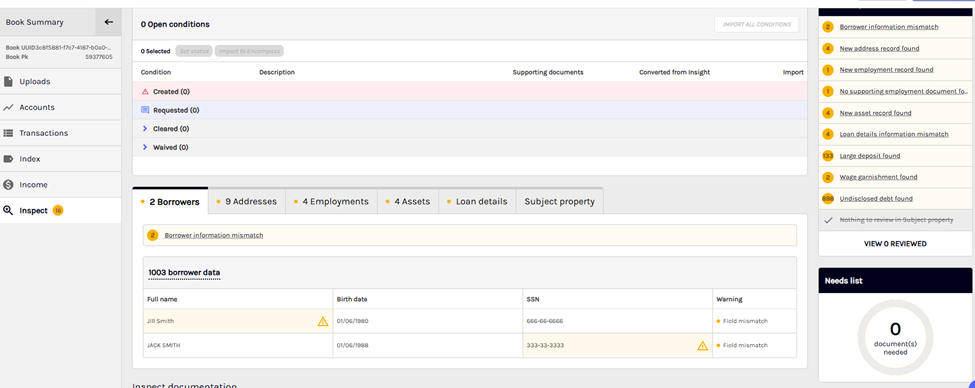
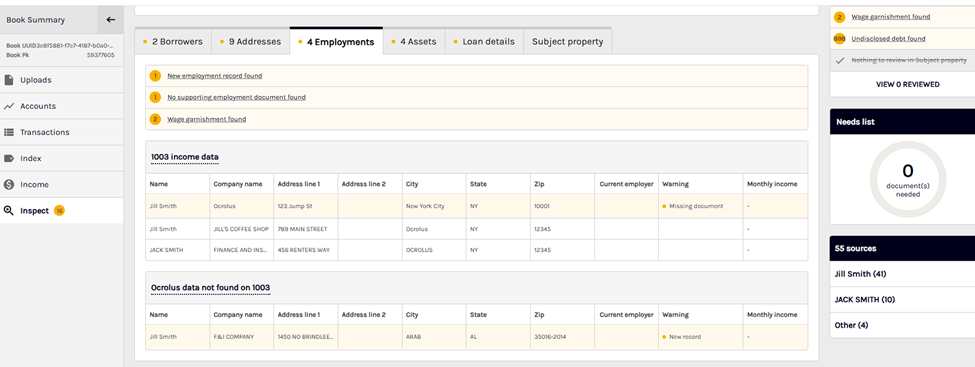
On the Inspect page, you can view asset analysis findings in two places:
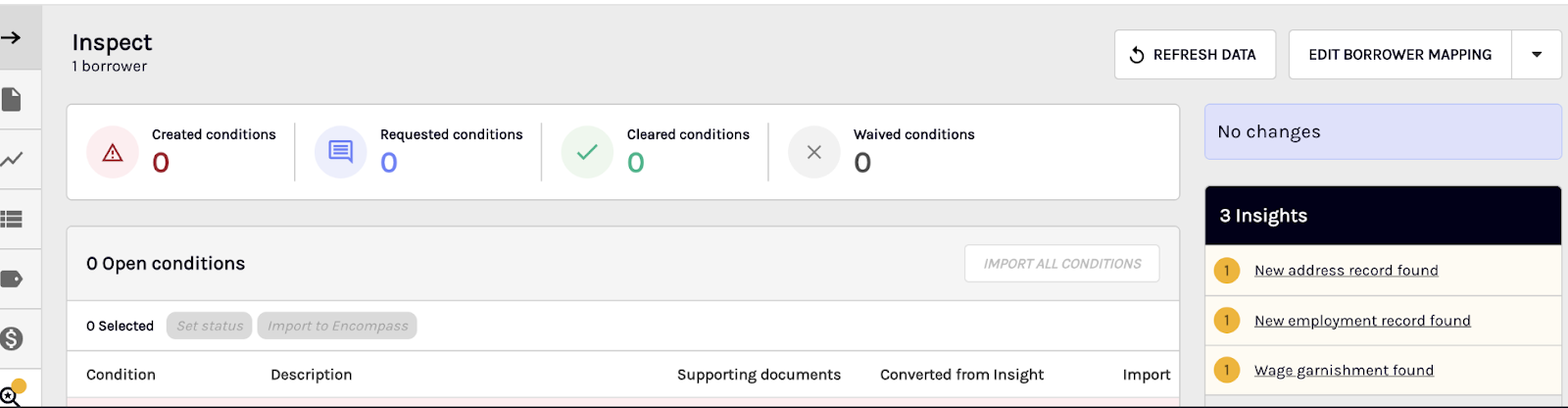
- In the Insights panel, on the right-hand side.
- At the bottom section in the Employment or Assets tabs.
Large deposit detection
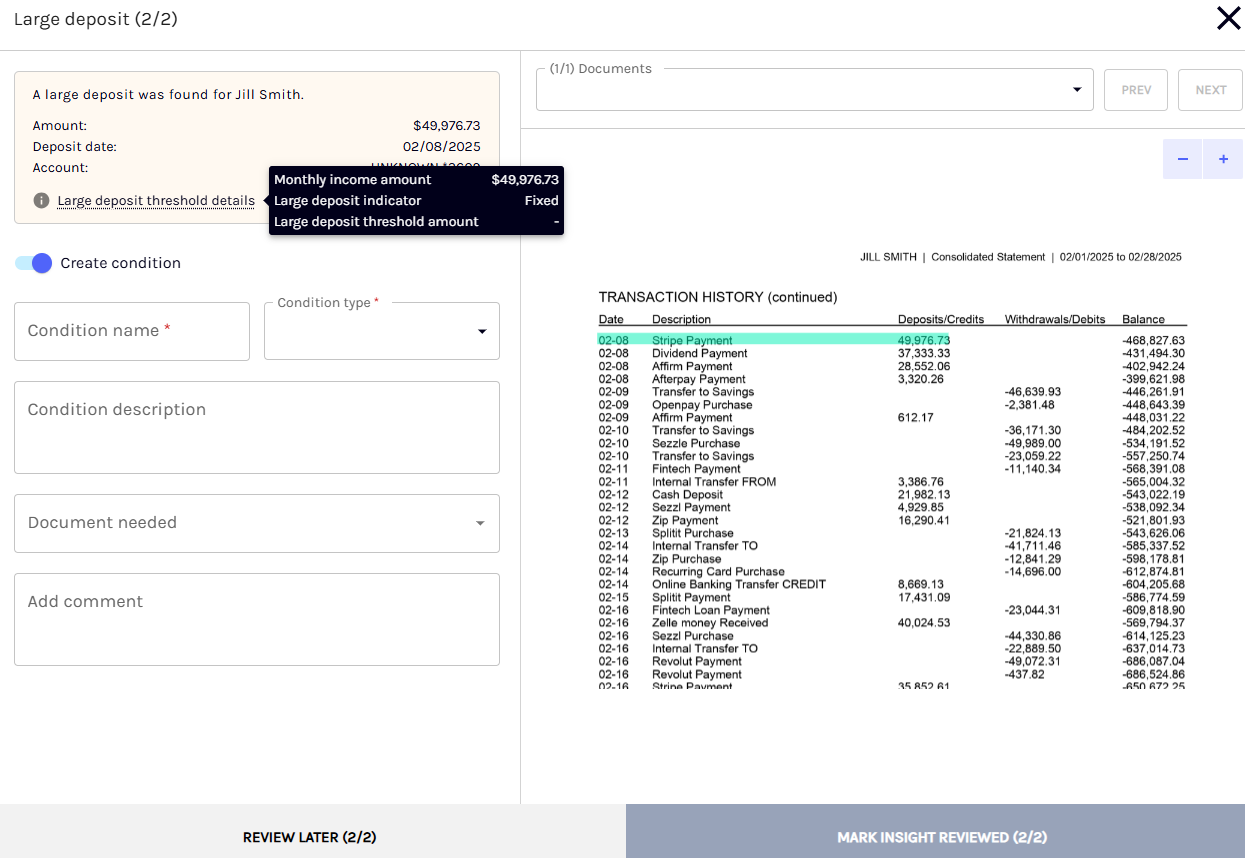
Large deposit detection is built into the analyzer. Using the borrower’s gross monthly income from the Encompass 1003 as the source of truth, Inspect applies loan-program rules to identify deposits that exceed thresholds defined by FHA, VA, USDA, and Conventional guidelines. Each flagged deposit is highlighted with a visual tag, and you can customize thresholds at either the global or Book level to match their compliance requirements.
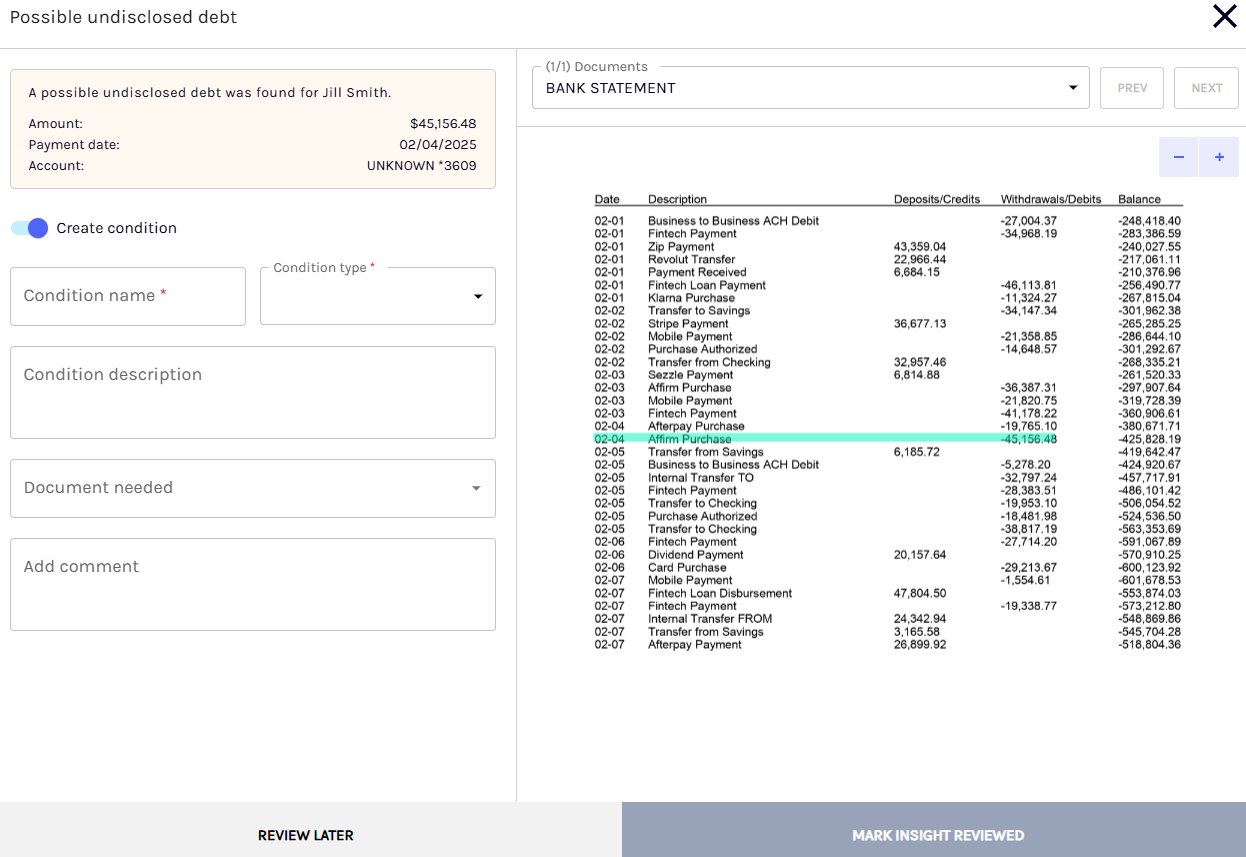
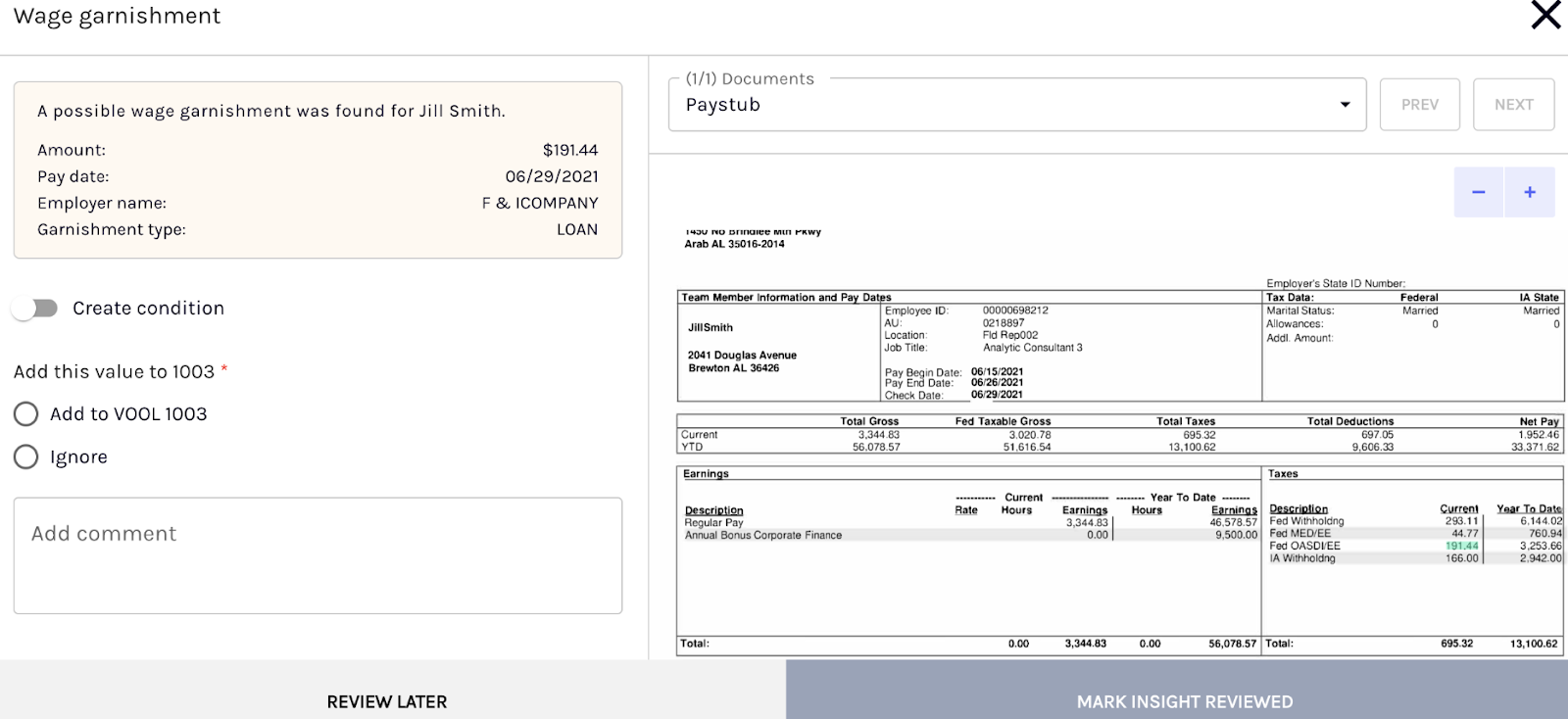
In the summary view, you’ll see the count of flagged insights and the types of asset analytics (debt, large deposit, garnishment). Click any asset insight to open the detailed view (modal), where you can review document snippets, any matched 1003 data (when relevant), and a clear explanation of why the item was flagged and take action.
Unified review in Inspect
All findings are surfaced within Inspect, where assets are included as a dedicated row for results. The summary view provides a quick count of flagged insights grouped by type, such as debts, large deposits, or garnishments. A detailed view allows you to drill deeper, displaying the relevant document snippet, matched 1003 data, the reason for the flag, and a Create condition toggle to take direct action. This toggle helps you create conditions in the UI and export/import those conditions to your Encompass LOS.
By enabling the Condition creation button, you can easily configure and add custom conditions directly within the platform. This allows you to define the Condition Name, select the appropriate Condition Type, provide a detailed Condition Description, specify the required Document Needed, and leave any additional Comments. It streamlines the underwriting process by allowing you to manage and track specific document requirements for borrower conditions in a structured and efficient way.