
Tag management
The Tag management page is a centralized place to create custom tags and modify system tags that classify transactions across your organization. Tags are defined by specific criteria, including include and exclude terms, amount thresholds, and recurrence frequency, and apply automatically to all matching transactions once saved. Changes are reflected immediately in transactions and analytics. You can access Tag management from the profile icon in the top right of the Ocrolus Dashboard.
NoteAll users can view the tag inventory. Editing tags and revenue deductions requires manager permissions.
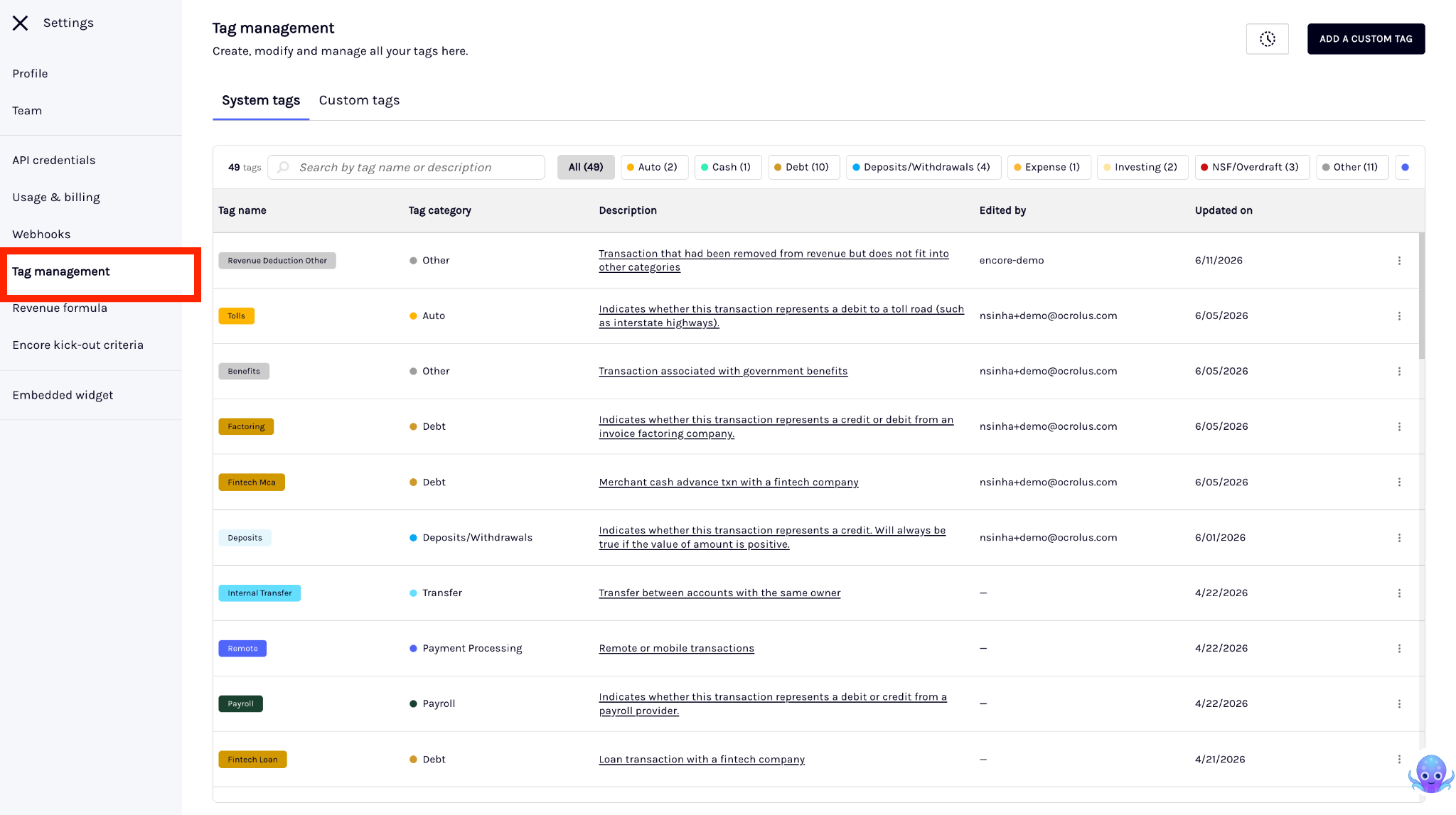
Tag management tools
| Tool | What it's for |
|---|---|
| System and custom tags | Work with Ocrolus built-in lending tags alongside tags your organization has created. |
| Search and category filters | Find any tag in a large inventory by description or category. |
| Add or edit in a side panel | Create or update a tag without leaving the table view. |
| Activity log | See who changed a tag and when. |
Create tags
This feature allows you to enhance transaction tagging by creating and applying tags based on specific criteria, including exact include/exclude terms and optional amount thresholds. It offers flexibility, with immediate updates reflected in transactions and analytics.
To create or update transaction tagging, perform the following steps:
-
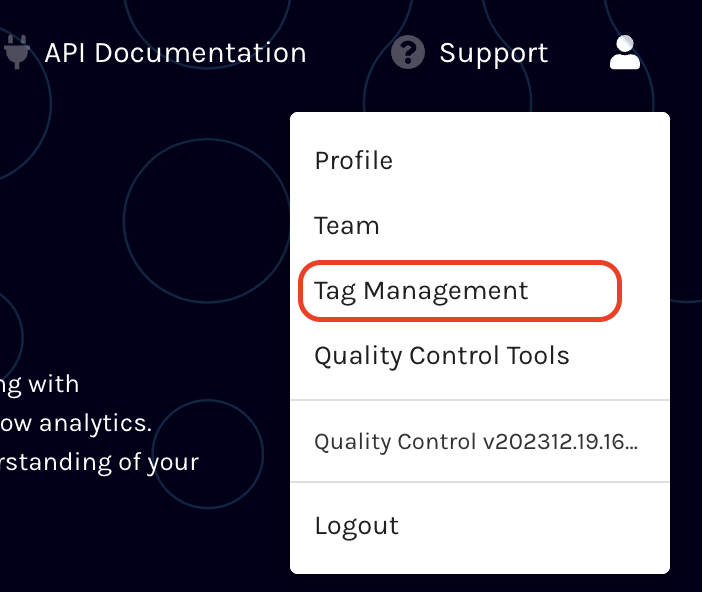
Upon login to the Ocrolus Dashboard, click on the profile icon and select Tag Management from the dropdown list.
-
On the Tag Management page, all the existing custom tags are listed.
-
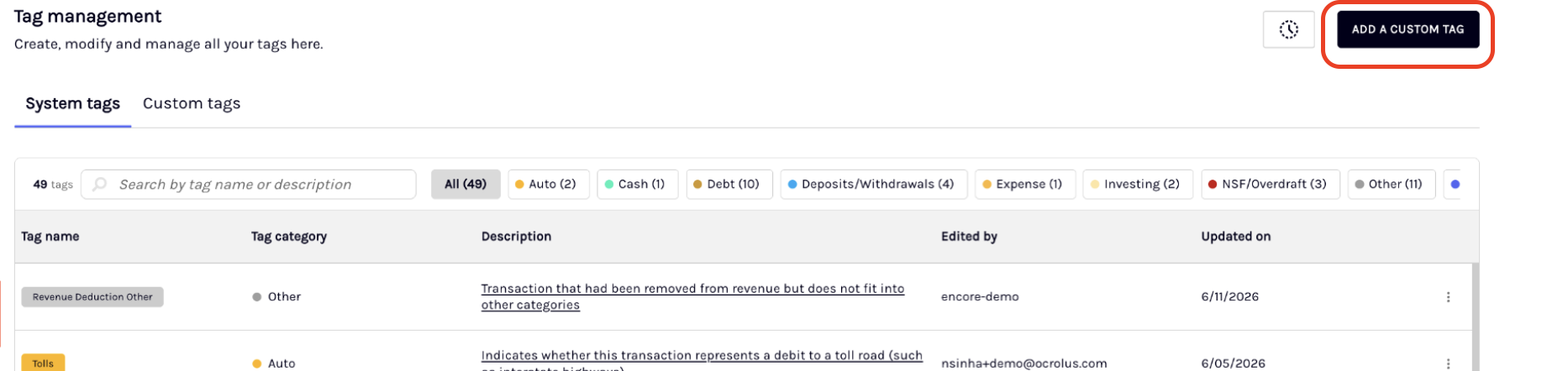
Click on the ADD TAG button to create the new custom tag.
-
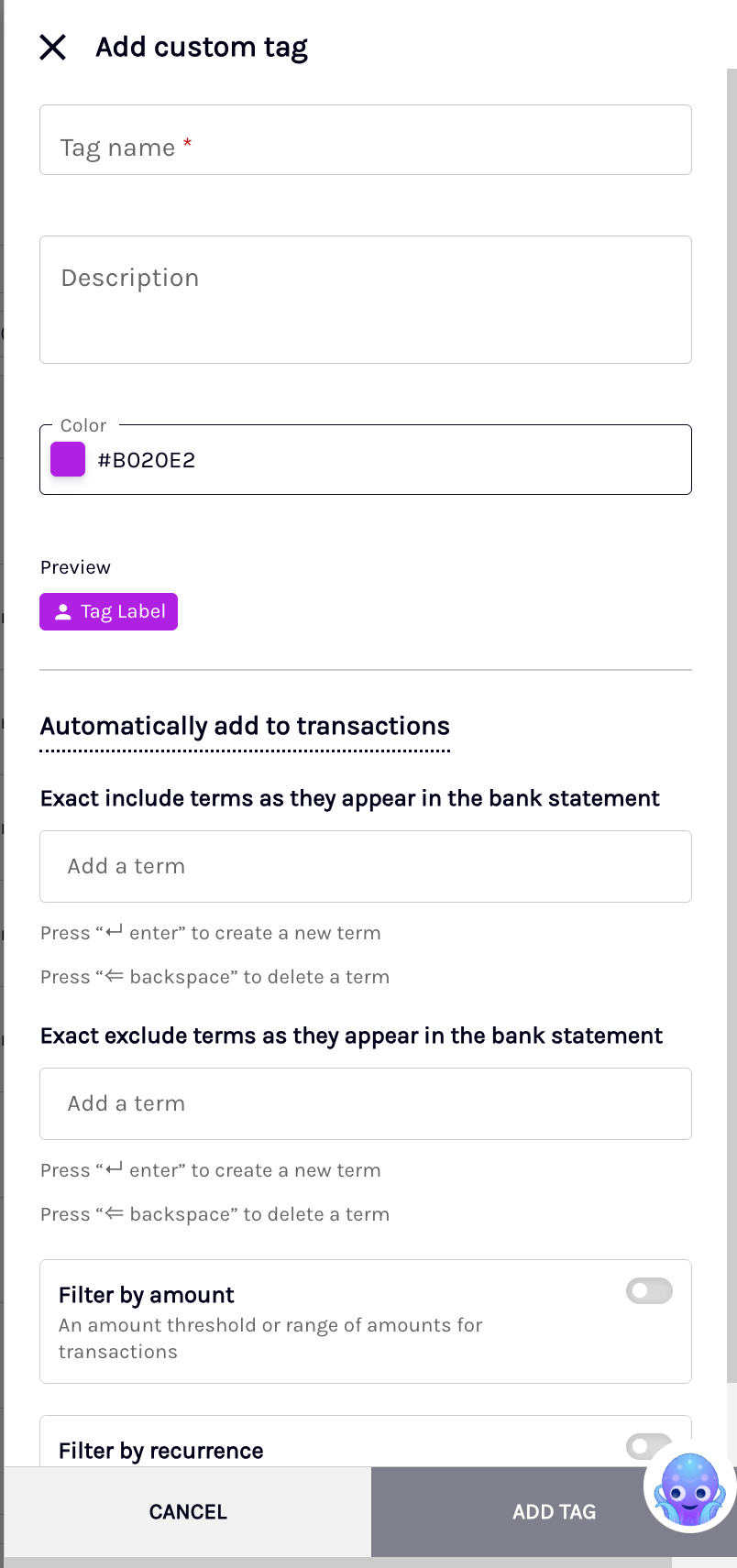
On the Add custom tag tag pop-up page, enter the following details:
-
Tag label: Enter a name for the custom tag.
-
Description: Optionally, add a description for better context.
-
Color: Choose a color to distinguish the tag visually.
-
Exact include terms as they appear in the bank statement: Enter the exact terms as they appear in the bank statement to apply the tag to matching transactions.
-
Exact exclude terms as they appear in the bank statement: Enter the exact terms as they appear in the bank statement to exclude matching transactions from this tag.
-
Filter by amounts: Toggle to set the amount or amount range thresholds, if needed.
-
Filter by recurrence: Toggle to set the recurrence frequency as desired.
-
-
Click on the ADD TAG button.
-
Once a custom tag is created, it will automatically be applied to all relevant transactions. You can view these tagged transactions on the Transactions page.
Edit system tags
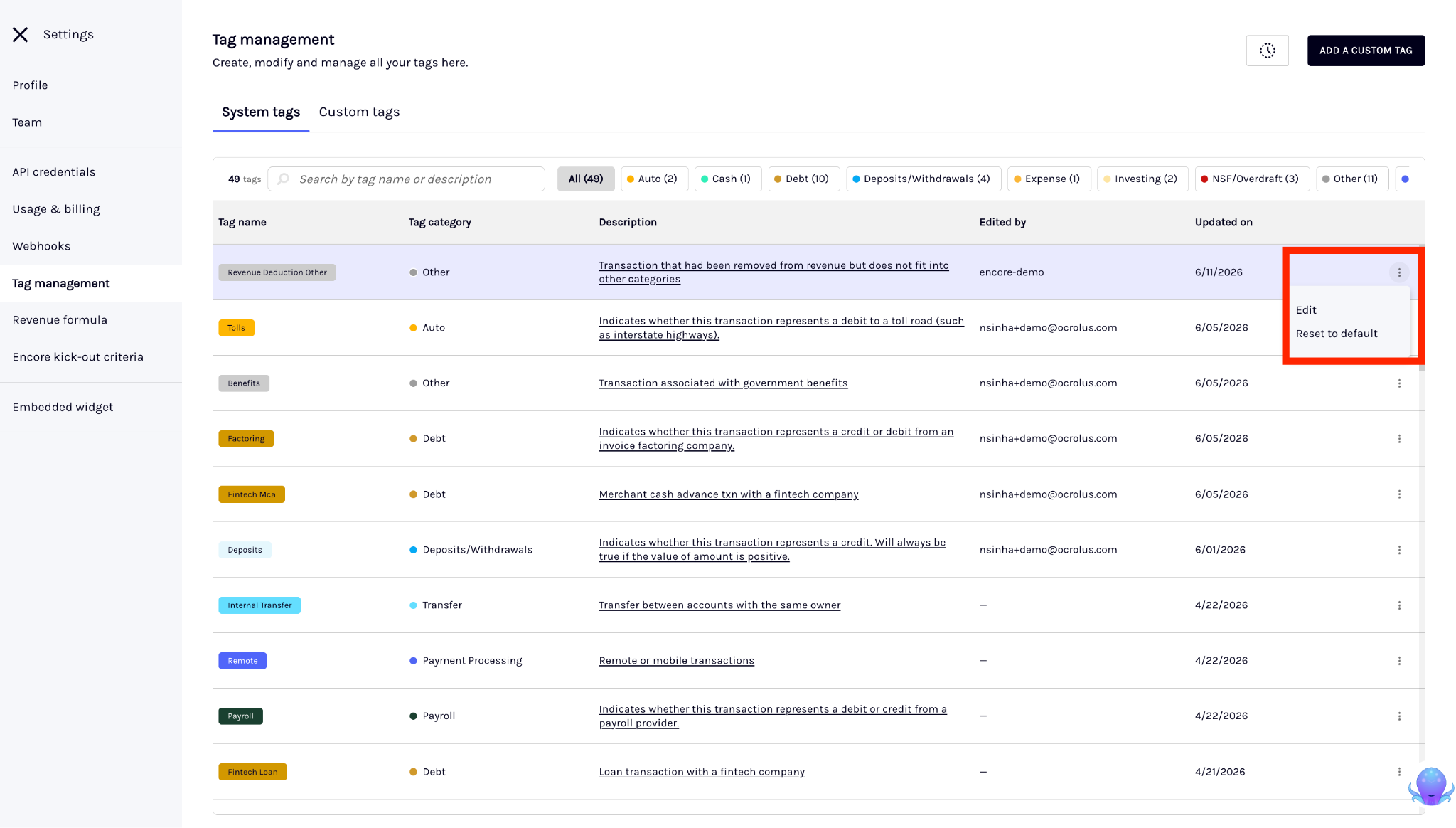
Ocrolus also includes ready-to-use System Tag categories specifically designed for lending scenarios.
To use the system tags, perform the following steps:
-
Upon login to the Ocrolus Dashboard, navigate to the profile icon and select Tag Management from the dropdown list.
-
On the Tag Management page, select the System Tag that you want to customize and then click Edit.
-
On the Edit System Tag page, update the required details and select UPDATE TAG button.
-
Once a system tag is updated, it will automatically be applied to all relevant transactions. You can view these tagged transactions on the Transactions page.
Updated 3 months ago