
Document expiration
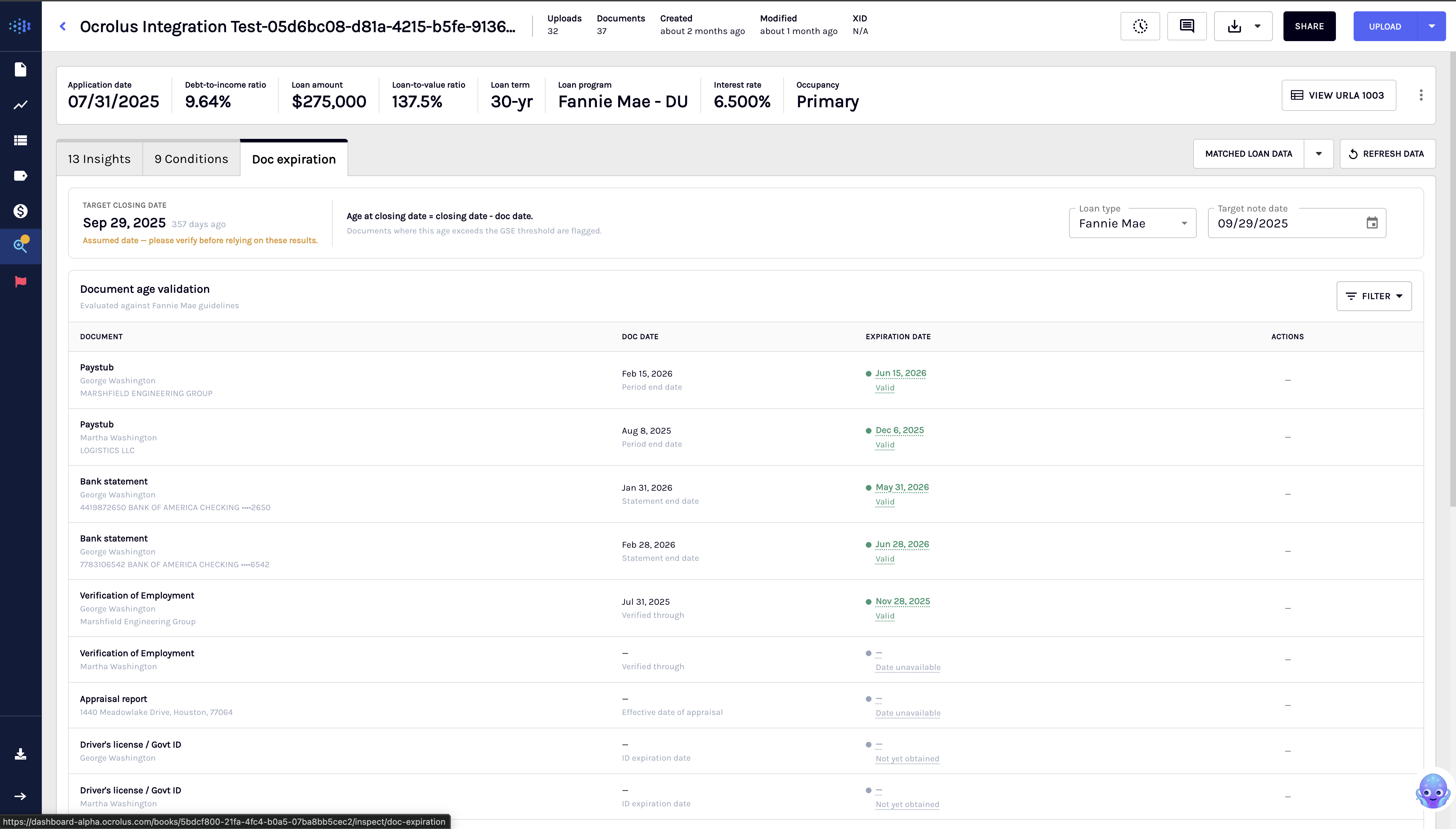
The Doc expiration tab in Inspect evaluates tracked documents in the loan file against Fannie Mae or Freddie Mac age requirements, measured against the closing date. Each document is assigned one of the following statuses: Expired, Recertification needed, Expiring soon, Valid, Unknown, or Pending.
Where a document is expired, expiring soon, or requires recertification, a condition can be created directly from that row.
Prerequisites
The following conditions must be met before the Doc Expiration tab returns results:
- The Doc expiration entitlement must be enabled for the organisation.
- An active Automated Conditions subscription must be in place.
If either condition is not met, the tab is not shown. A Target note date is required for expiration calculations. If no closing date is available in the loan, Inspect uses the application date plus 60 days as a proxy. If no application date is available either, Inspect uses today plus 30 days. In both cases, the page displays the line "Assumed date — please verify before relying on these results."
Document statuses
Each document in the tab is assigned one of the following statuses:
| Status | Condition | Recommended action |
|---|---|---|
| Expired | Age at closing date exceeds the allowable threshold, or the document expiry date falls before the closing date | Create a condition to request an updated document |
| Recertification needed | Any document past its threshold but inside its grace window. Appraisal (1004 only) is the only document type configured with this today | Create a condition to request recertification |
| Expiring soon | Within 7 days by default of the allowable threshold being exceeded. For self-expiring documents such as ID, insurance, visa, and green card, fires 7 days before the document's own expiry date. The 7-day window is configurable per document type | Refresh before closing |
| Valid | Within the GSE allowable window | No action required |
| Unknown | A date could not be extracted from the document, the document type has no rule for the selected loan type, or the reference date could not be resolved | Re-upload the document or contact Ocrolus support |
| Pending | Document not yet in the loan file | Obtain the document |
Document types and expiration rules
The tab evaluates the following document types. On a real loan, a single document type can produce multiple rows. For example, paystubs produce one row per borrower, VOE produces one row per borrower and employer, and bank and investment statements produce one row per account.
| Document type | Expiration rule | FNMA reference | FHLMC reference |
|---|---|---|---|
| Driver's License | Must not be expired as of closing date. Expiring soon fires 7 days by default before the document's own expiry date | B2-2-01 | 5201.1 |
| Paystub (including Military LES) | Within 120 days of closing date | B3-3.1-01; B3-3.2-01 | 5302.2(a) |
| Bank statements | Within 120 days of closing date | B1-1-03 | 5102.4 |
| Investment statements | Within 120 days of closing date | B1-1-03 | 5102.4 |
| Credit report (tri-merge) | Within 120 days of application date. This is the only document type not measured at closing date | B1-1-03 | 5102.4 |
| Verification of Employment (VOE) | Within 120 days of closing date | B3-3.2-01 | 5102.4 |
| Verbal VOE (pre-closing) | Within 10 business days before closing date | B3-3.2-01 | 5306.1 |
| Appraisal report (1004 only) | Within 120 days of closing date. If past 120 days but inside its grace window, shows Recertification needed | B4-1.2-04 | 5601.6 |
| HOI / Hazard insurance binder | Coverage end date must be after the closing date. Expiring soon fires 7 days by default before the document's own expiry date | B7-3-02 | 8203.4 |
| 4506-C / Tax transcript request | Within 120 days of closing date; signed no later than closing date | B3-3.1-06 | 5302.4 |
| H-1B visa | Document expiry date must be after closing date. Expiring soon fires 7 days by default before the document's own expiry date | ||
| Permanent Resident Card | Document expiry date must be after closing date. Expiring soon fires 7 days by default before the document's own expiry date |
NoteThis tab covers conventional and GSE loans only. FHA, VA, and USDA expiration rules are not evaluated currently.
Review and act on document expiration
To review document expiration status and take action, perform the following steps:
-
Open a loan in Inspect and select the Doc Expiration tab.
-
Review the TARGET CLOSING DATE context bar at the top of the tab. It displays the target note date, the number of days remaining, and the following formula:
Age at closing date = closing date - doc date. If no date is available from the loan, the page displays "Assumed date — please verify before relying on these results." message.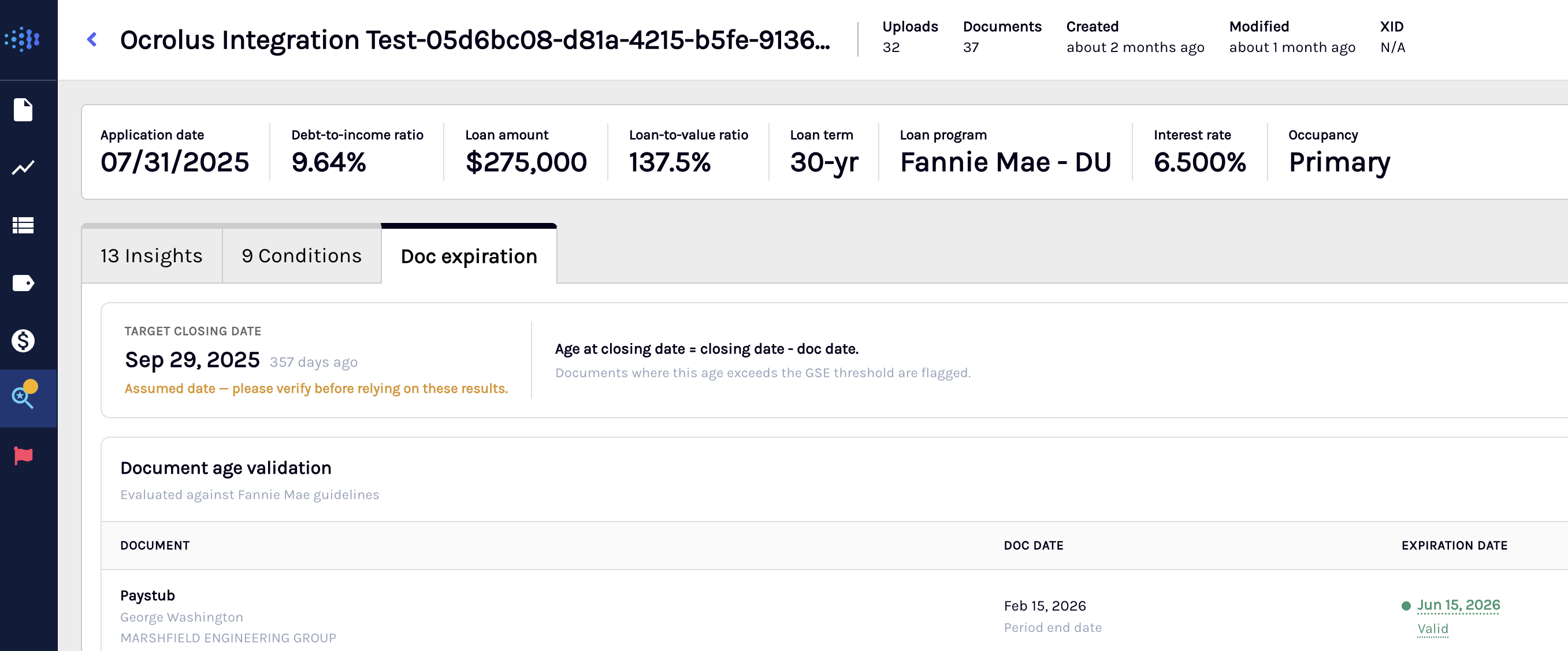
-
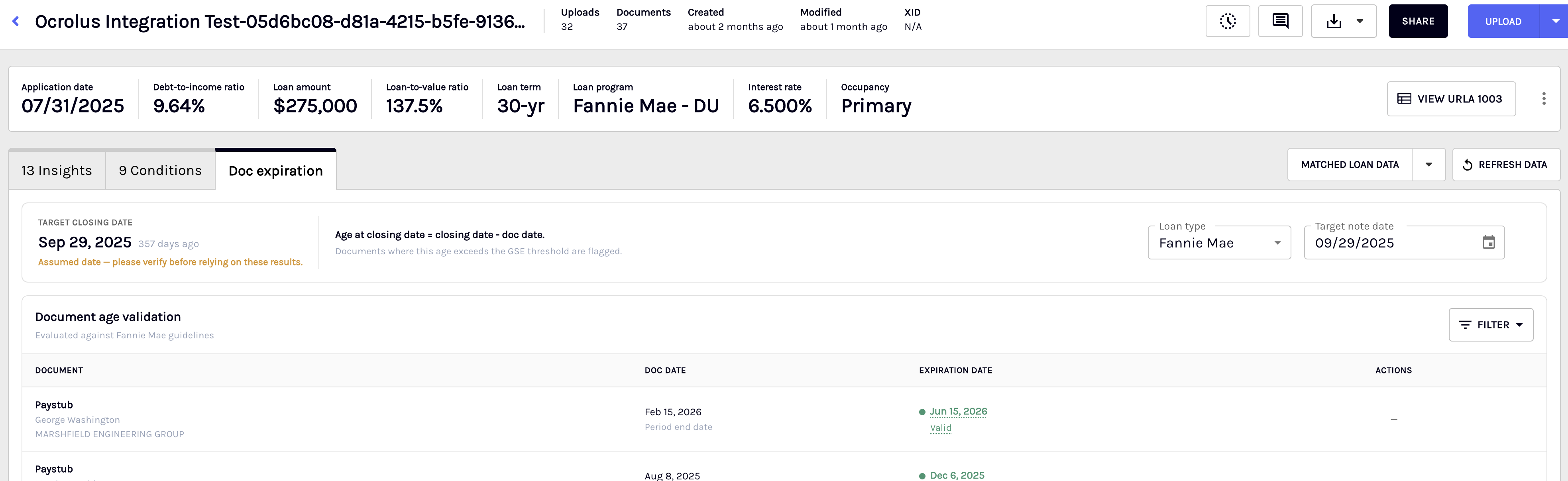
To switch the guideline set, use the Loan type selector. The available options are Fannie Mae and Freddie Mac. All expiration thresholds recalculate based on the selected option.
-
To model a different closing date scenario, use the Target note date date picker. All expiration dates and day counts recalculate immediately without a page reload.
-
Review the alert banner below the TARGET CLOSING DATE bar:
- When one or more documents are expired, need recertification, or are expiring soon, the banner shows a count chip for each of those statuses. Chips appear only when the count is above zero.
- When all documents are valid, the banner shows: All documents are valid for the current closing date.
- When documents are a mix of Valid and Pending only, the banner shows nothing.
-
Review the document table. The default sort order is Expired first, followed by Recertification needed, Expiring soon, Valid, Unknown, then Pending. The table contains the following columns:
Column Description Document Document type name with borrower or source sub-label Doc date Date extracted from the document by Ocrolus Expiration date The expiration date with days remaining or days past. Status is shown as a coloured dot with a caption inside this cell. Hover over this cell to see the governing GSE reference for the flagged document Actions Create condition for Expired, Recertification needed, and Expiring soon rows, subject to the conditions described below. Valid, Unknown, and Pending rows show a dash. View condition appears at any status when a condition already exists for that document -
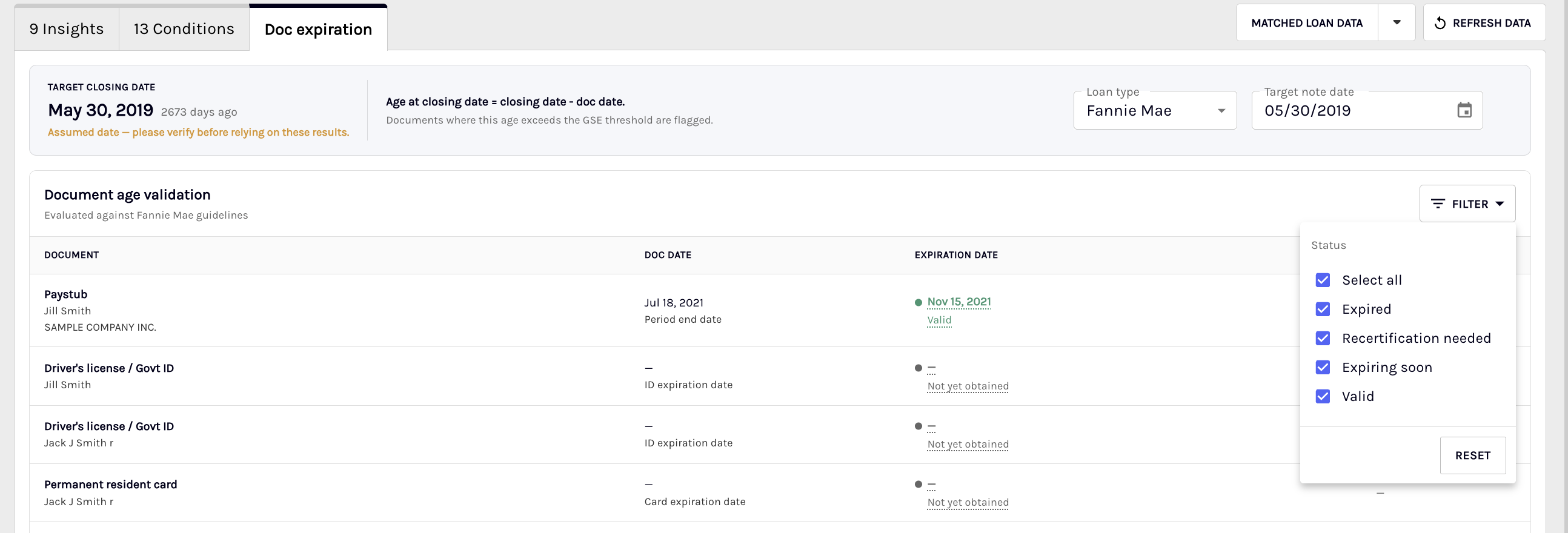
To filter the table by status, select the FILTER button and choose one or more of the following options from the dropdown list. The available filter options are Expired, Recertification needed, Expiring soon, Valid. To return to the unfiltered view, select Reset filters.
Pending and Unknown rows are hidden when any filter is active. Selecting all four options hides Pending and Unknown rows and is not the same as unfiltered. Filter selections reset on page reload or when the loan is closed.
-
For an expired, expiring soon, or recertification needed document, select Create condition in the Actions column. The condition creation modal opens with the following fields pre-filled: condition name, condition type, condition description, documents needed, and owner. Add a
comment if needed, then confirm.
Create condition is available only when all of the following are true:- The document has an actionable status (Expired, Recertification needed, or Expiring soon).
- The condition template is active.
- The condition text resolves, the borrower and employer are known.
- The user has create-condition permission.
If any of these is not met, the row shows a dash even when the document status is Expired. If a condition already exists and is Open, Create condition is replaced with View condition. Once the condition is cleared, waived, rejected, or discarded, Create condition becomes available again.
-
After the condition is created, Create condition updates to View condition. The condition appears in the Conditions tab with status Open. Importing conditions to Encompass depends on whether the Encompass integration is enabled for your organisation.
Limitations
The following limitations apply to the Doc expiration feature:
- Covers conventional and GSE loans only. FHA, VA, and USDA expiration rules are not evaluated.
- Appraisal evaluation covers the standard 1004 form only.
- Ocrolus cannot re-pull or re-order documents. Every action on this tab creates a condition.
- Where multiple document dates exist for one document type, the most recent document date drives the calculation. Re-uploading an older document does not change the result.
- The Target note date override does not write back to the LOS.
- Unknown document rows cannot be resolved from within the tab. Re-upload the document or contact Ocrolus support if the date cannot be extracted.
See also
Learn how Inspect surfaces insights, conditions, and document-level intelligence to help underwriters review loan files more accurately and efficiently.
Review, manage, and import into Encompass the loan conditions automatically generated from document analysis, AUS findings, and GSE guidelines.
Updated 8 days ago