
Modify earnings mapping
Ocrolus maps each earning description on a pay stub to an income category and uses that mapping to calculate wage-earner income. The income categories are Salary, Hourly, Over Time, Bonus, Commission, Military, Shift Differential, and Misc. Modify earnings mapping applies to the Wage earner tab only. You cannot create new income categories or edit earning amounts. To learn how Ocrolus calculates wage-earner income, see the Wage earner income guide.
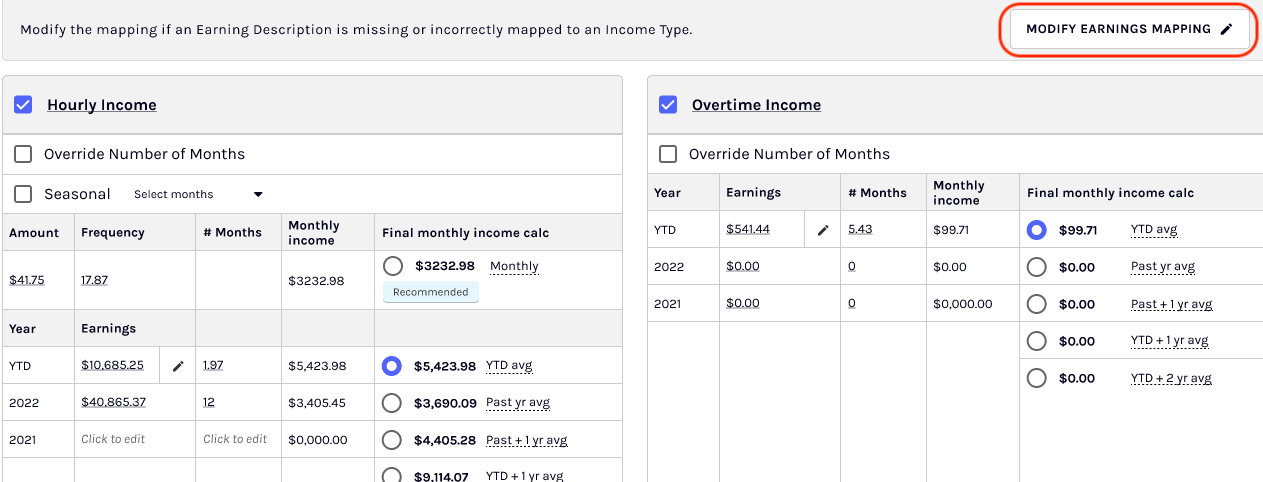
If a description is mapped to the wrong category, or is not mapped at all, use Modify Earnings Mapping to correct it. You can review how the descriptions are mapped, see the effect on income, and see how each category's income is calculated. Modify earnings mapping works across loan program guidelines, for example Fannie Mae and FHA.
Prerequisites
Before you start, make sure that the following conditions are met:
- The file must include at least one pay stub.
- Mapping changes follow your existing permissions for editing income.
- Changes apply to the file you are working in. They do not affect other files or your organization's defaults.
Correct a mapping
When an earning description is missing or mapped to the wrong category, the Wage earner tab shows a prompt to update the mapping. To move a description to a different category:
- Select Modify Earnings Mapping. The Modify Earning Mappings window opens.
- Drag the description to the category where it belongs.
- Select Apply Changes. Ocrolus saves the mapping and recalculates wage-earner income.
To remove a description from a category without moving it, select the X icon next to the description. Your income doesn't change until you select Apply Changes.

The mapping window
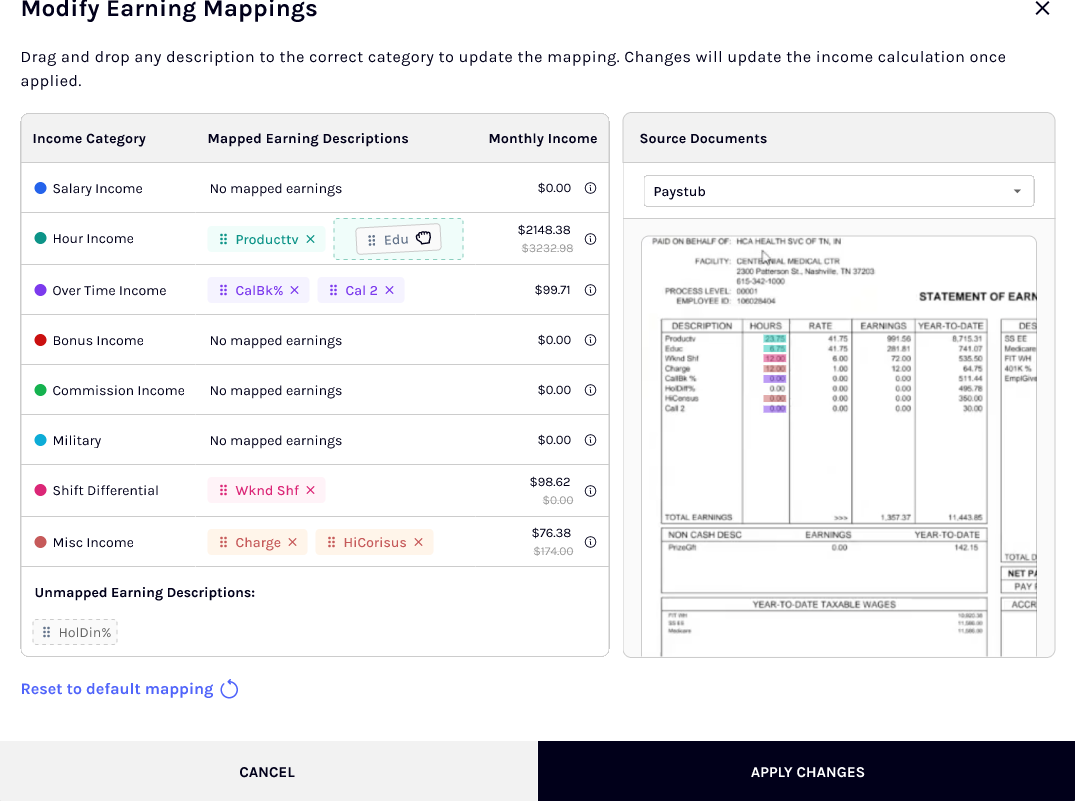
Below the title, the window shows this instruction: Drag and drop any description to the correct category to update the mapping. Changes will update the income calculation once applied.
On the left, a table lists each income category, the descriptions mapped to it, and the category's Monthly Income. The categories are Salary, Hourly, Over Time, Bonus, Commission, Military, Shift Differential, and Misc. Each category has a colored dot.
Each description appears as a draggable label, and every mapped description has an X icon for removing it. A category with nothing mapped to it shows No mapped earnings and $0.00.
On the right, a document viewer shows the pay stub. The colors of the descriptions match the highlights on the pay stub, so you can check each line against the document.
A description can belong to only one category. If you release a description outside a category row, it returns to where it started. The window visually indicates pending changes, and Monthly Income doesn't update until you select Apply Changes.
Each earning description appears only once in the window, even when it appears on more than one pay stub.
Unmapped earning descriptions
The Unmapped Earning Descriptions section appears below the table when at least one description isn't mapped to a category. Descriptions that have no default mapping start there, and so does any description you remove from a category. Unmapped descriptions count as $0 in every category, so they don't add to your income until you map them.
You can drag a description from this section into any category. When every description is mapped, the section disappears. It reappears if you later remove a description from a category.
Income calculation formulas
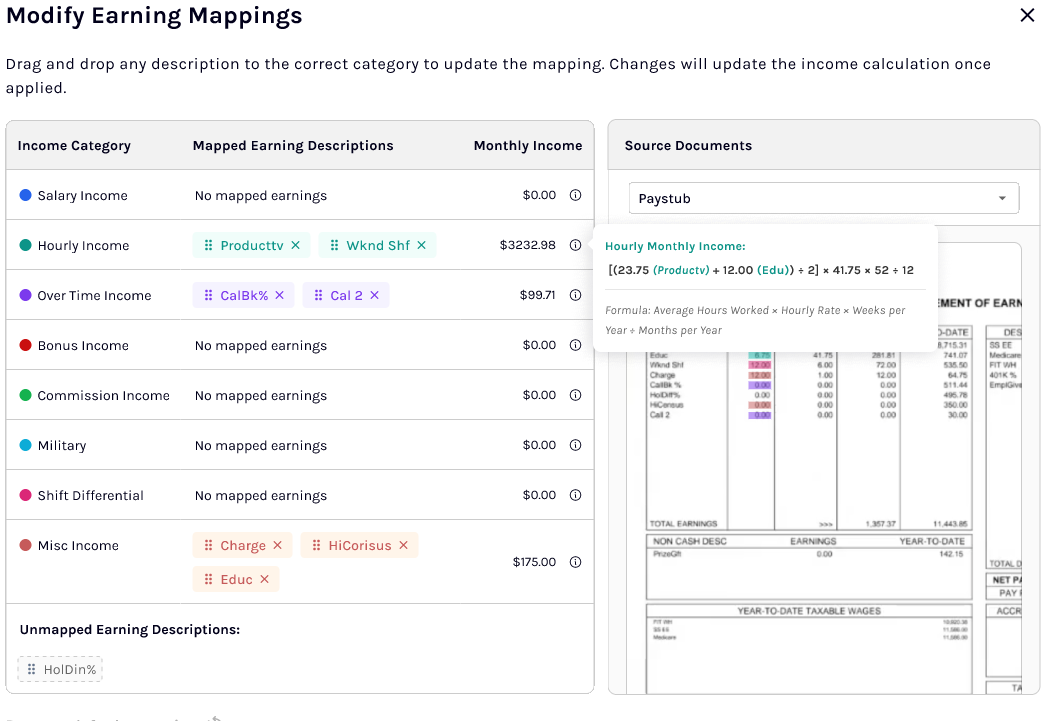
Each category's Monthly Income has an information icon. For Salary, Hourly, Over Time, and Misc, select the icon to see the formula, the earning descriptions included, and a plain-language explanation of the calculation. The tooltip updates after you apply changes.
| Category | Formula |
|---|---|
| Salary | Total earnings × pay periods per year ÷ months per year |
| Hourly | Average hours worked × hourly rate × weeks per year ÷ months per year |
| Over Time | Sum of the mapped earnings ÷ total months worked in the year |
| Misc | Sum of the mapped earnings ÷ total months worked in the year |
Apply, reset, or cancel change
- Apply Changes saves the mapping for the loan file and recalculates wage-earner income. The window closes, the Wage earner tab refreshes, and a confirmation message appears. The refresh includes the category cards, the totals, and Total income. If the update fails, an error message appears and the window stays open with your changes.
- Reset to default mapping restores the system-generated mapping.
- Cancel, or the X in the corner of the window, closes the window. If you have unsaved changes, Ocrolus asks you to confirm before it discards them. Nothing is saved, and Ocrolus doesn't recalculate income.
If the sources or documents change while the window is open, a message tells you to refresh. If another user edits at the same time, Ocrolus detects the change when you select Apply Changes and prompts you to reload.
Apply Changes and Reset to default mapping aren't available until you make a change. They become unavailable again if you return the mapping to how it was when you opened the window.
Updated 15 days ago