
Email connector
Email connector allows lenders, brokers, and partners to submit merchant documents by sending or forwarding an email with attachments. Documents submitted through email connector are automatically uploaded to Ocrolus for verification and analysis—without requiring manual Dashboard uploads or API integrations.
With email connector, documents can be submitted by emailing attachments to [email protected]. When an email is received, Ocrolus automatically:
- Verifies that the sender is authorized
- Extracts and validates attachments
- Creates a new Book or updates an existing one
- Uploads documents for verification and analysis
- Sends confirmation and status emails to the sender
Tip
No special email formatting or configuration is required.
Using email connector
To use the email connector, perform the following steps:
Step 1: Send documents via email
Send or forward an email with document attachments to [email protected].
Supported behavior
- Emails with attachments are processed
- Emails without attachments are ignored
- Multiple attachments in a single email are supported
- Compressed files (for example,
.zip) are supported - Common document types such as bank statements, pay stubs, and tax forms are accepted
Tip
The email subject line and body do not affect processing.
Step 2: Sender authorization
Only authorized email addresses can submit documents using email connector.
- The sender’s email address must be approved under your organization
- Authorization is managed through your Account Manager or Ocrolus Support
- Emails sent from unauthorized addresses are ignored and documents are not uploaded
Step 3: Books are created/updated
Email connector uses the email thread to determine how documents are grouped.
New email thread
- A new Book is created automatically
- All valid attachments from the email are added to that Book
Replies or forwards in the same thread
- New attachments are added to the existing Book
- No duplicate Book is created
This ensures documents shared as part of the same email conversation remain grouped together.
Step 4: Attachment validation and security
All attachments are automatically validated before upload.
Each file is checked for:
- Supported file format
- File size limits
- Viruses or malware
What this means
- Files that pass validation are uploaded automatically
- Files that fail validation are skipped
- If some files fail, others in the same email may still upload successfully
- No manual review or action is required
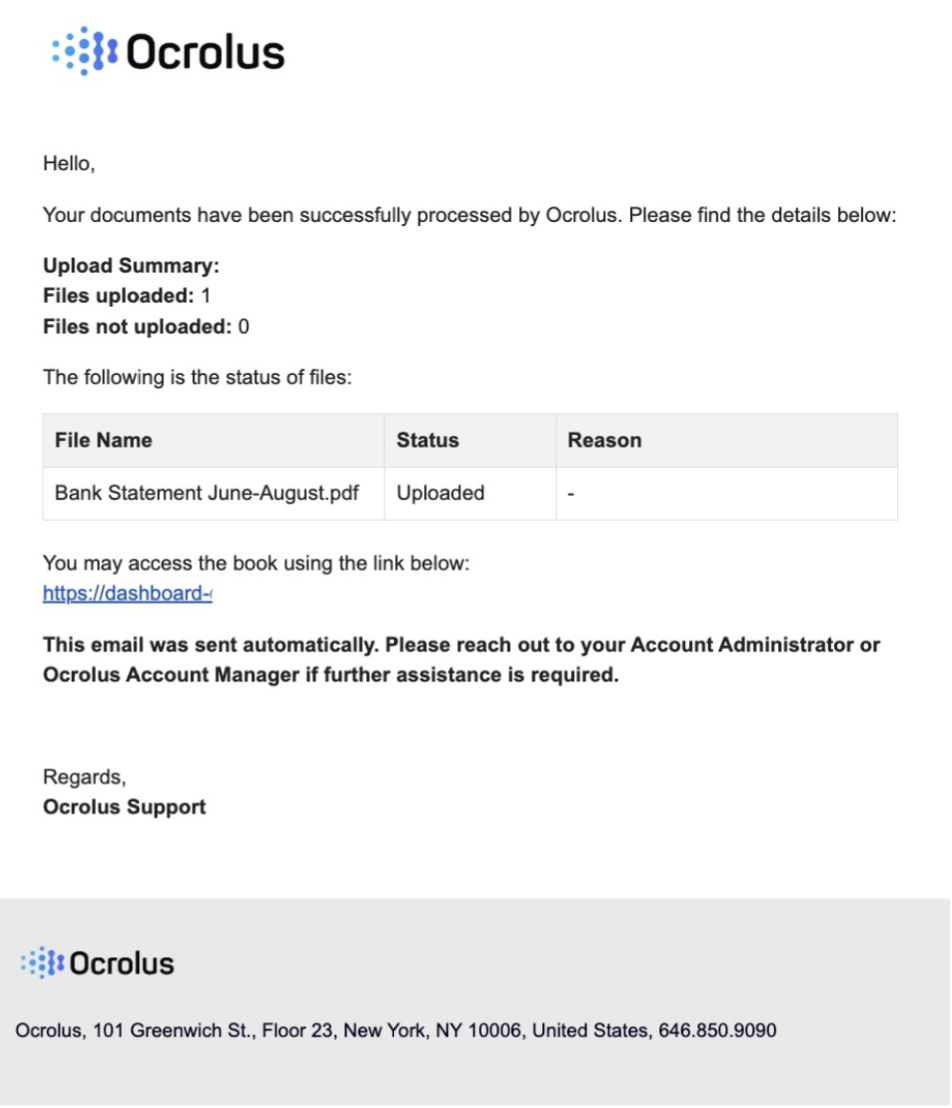
Upload confirmation email
After processing an email, the sender receives an automatic confirmation message.
The confirmation indicates whether:
- All attachments were uploaded successfully
- Some attachments were uploaded and others were skipped
- No attachments were uploaded
The email includes:
- Number of files uploaded
- Number of files skipped and the reason(s)
- Book name or Book ID
- A link to view the Book in the Ocrolus Dashboard
Conditions to use email connector
Email connector is especially useful when:
- Documents are primarily collected via email
- Brokers or third parties submit documents on behalf of merchants
- Teams want to avoid manual downloads and re-uploads
- Existing email workflows need to remain unchanged
Updated 2 months ago